
5. Groups
The Groups feature allows you to organize users into groups for efficient management. By sharing books at the group level, you can automatically handle user additions and removals.
Note: The Add button visibility depends on your environment: - Cloud Service: Displayed if you have joined a workgroup - Dedicated Server (On-premises): Displayed only for users with workgroup administrator privileges (Owner/Admin)
5.1 Group List
Opening the Groups tab displays a list of groups.
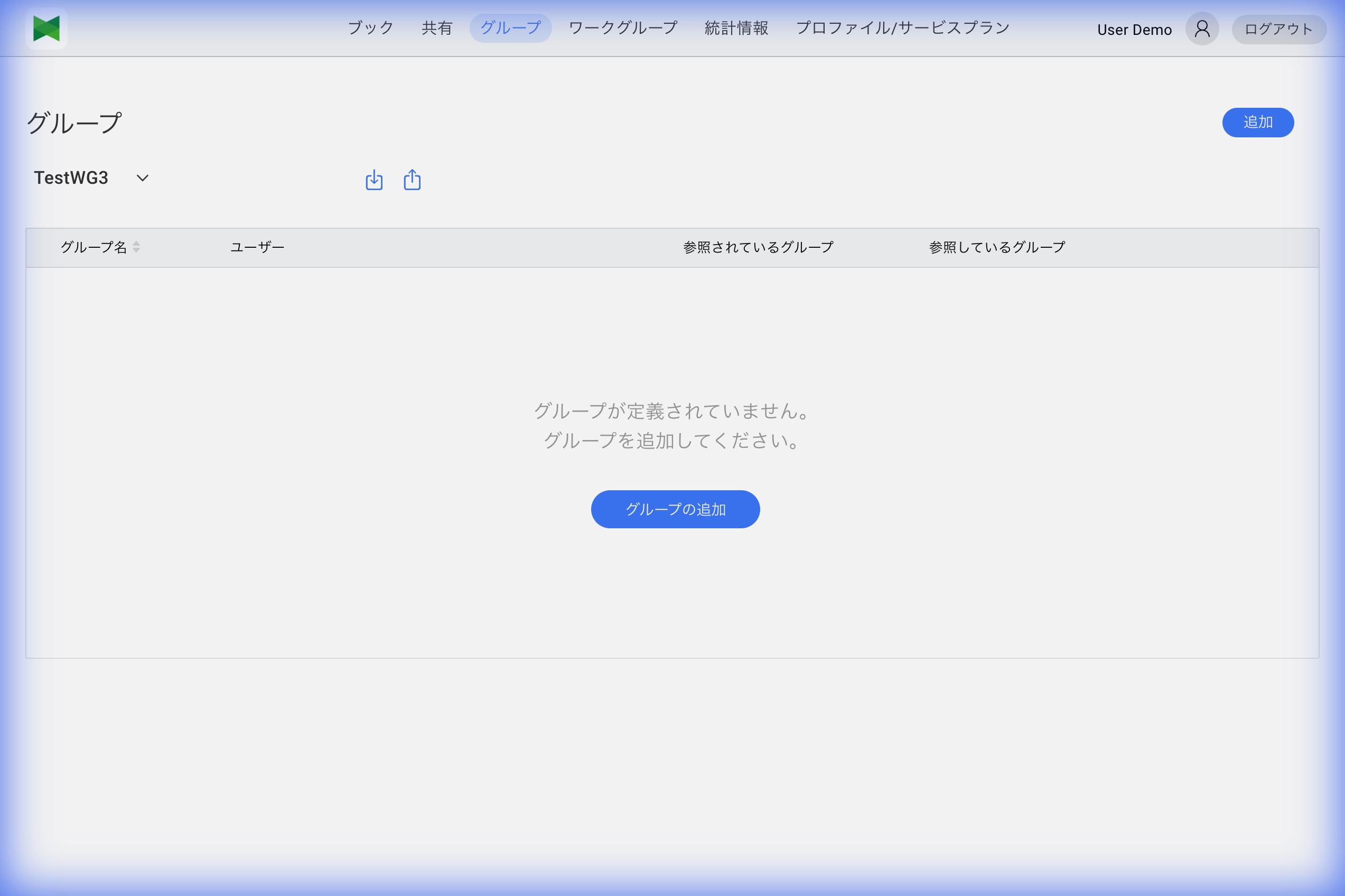
Display Items
| Item | Description |
|---|---|
| Group Name | Name of the group |
| Users | Users belonging to the group |
| Referenced groups | Parent groups (upper-level groups that contain this group) |
| Reference Group | Child groups (lower-level groups contained in this group) |
Viewing Group Users
The Users column displays icons and names of belonging users. If there are many users, click the "..." icon to view all users.
5.2 Selecting a Workgroup
You can switch the displayed workgroup from the dropdown at the top of the group list.
- Click on the Workgroup name
- A dropdown menu appears
- Select the workgroup you want to display
Note: Groups are managed per workgroup. Switching workgroups displays the groups of that workgroup.
5.3 Creating a Group
To create a new group:
- Click the Add button
- The "Add Group" dialog appears
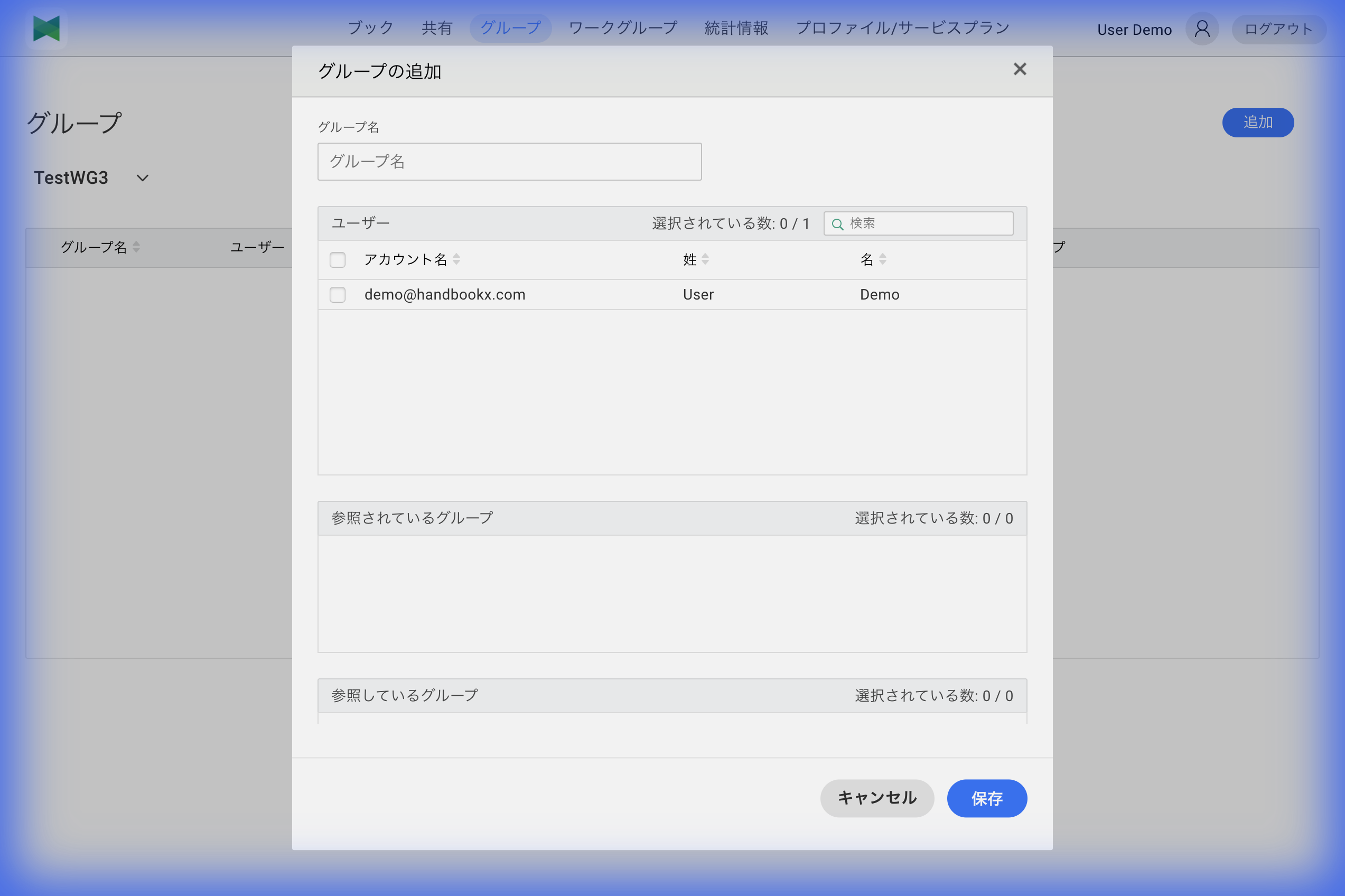
- Enter the following information:
| Item | Required | Description |
|---|---|---|
| Group Name | ○ | Name of the group (max 100 characters) |
| Users | - | Users to add to the group |
| Referenced groups | - | Set parent groups (upper-level groups that contain this group) |
| Reference Group | - | Set child groups (lower-level groups contained in this group) |
- Click the Save button
Selecting Users
- Select users' checkboxes in the Users section
- The user list shows the following columns:
- Account Name: User's email address or account name
- Department: The department the user set on their profile
- Last Name / First Name: User's name
- The "Selected" count shows the number of selected users
- You can search for users using the search box (partial match against Account Name, Last Name, or First Name)
5.4 Editing a Group
To edit an existing group:
- Click the Edit button (
 ) of the group you want to edit in the group list
 - The "Edit Group" dialog appears
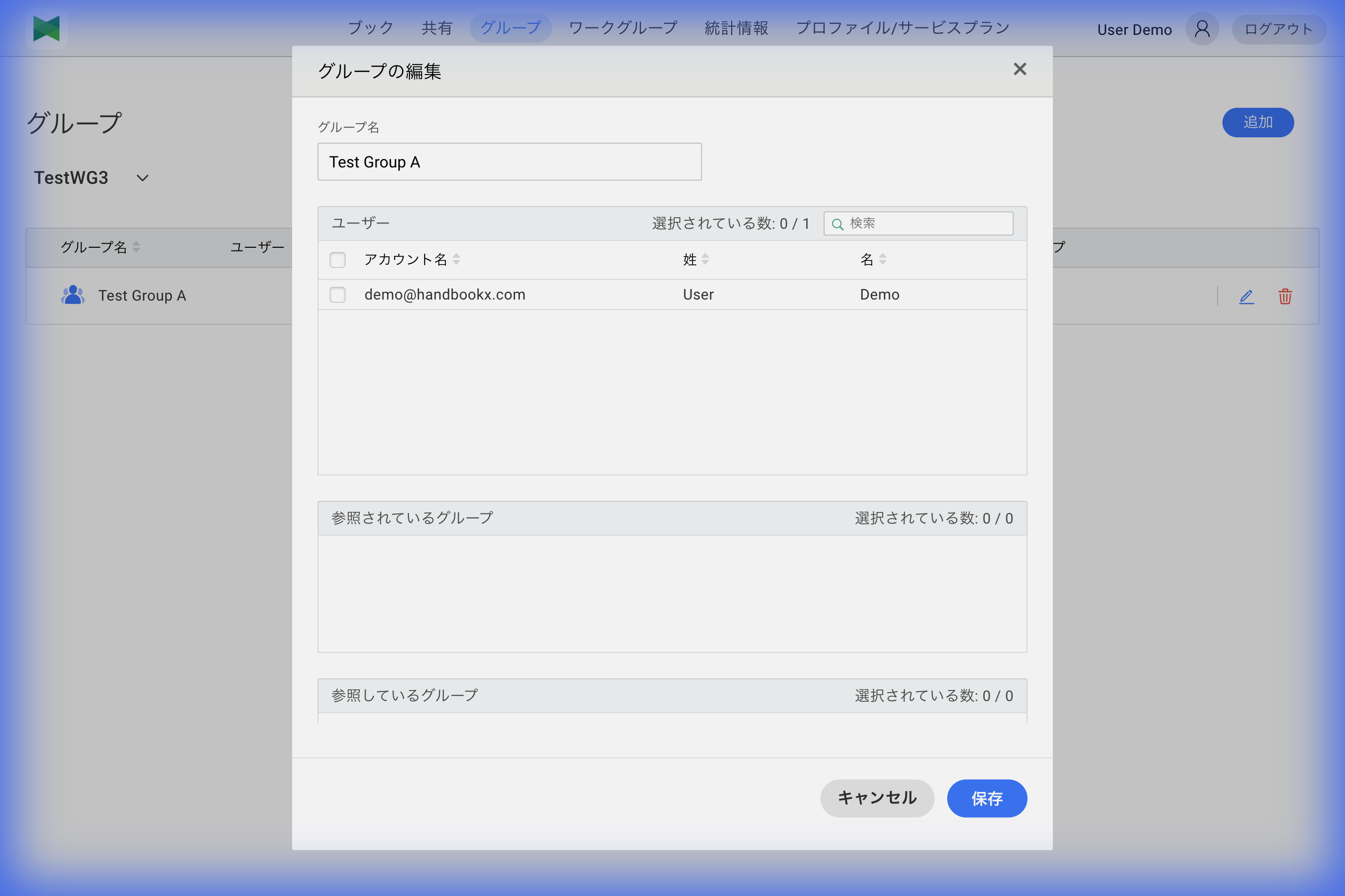
- Modify the information:
- Group Name
- Add/remove users
- Change Referenced groups (parent groups) / Reference Group (child groups)
- Click the Save button
5.5 Removing a Group
To remove a group:
- Click the Remove button (
 ) of the group you want to remove in the group list
 - The "Remove Group" confirmation dialog appears
- Click the Remove button
Note: Removing a group does not delete the users who belonged to the group.
Note: Removing a group also removes sharing settings for that group.
5.6 Managing Group Users
Adding Users
- Open the Edit Group dialog
- Select users' checkboxes in the Users section
- Click the Save button
Removing Users
- Open the Edit Group dialog
- Uncheck the checkbox of the user you want to remove in the Users section
- Click the Save button
Viewing All Users
- Click the "..." icon in the group list
- The group users list dialog appears
- You can view all users
5.7 Referenced Groups and Reference Groups
Groups can have a hierarchical structure. On screen, "Referenced groups" means parent groups and "Reference Group" means child groups.
Referenced Groups (Parent Groups)
- "Referenced groups" are upper-level groups that contain this group (parent groups)
- Sharing to a parent group automatically applies to this group as well
Reference Groups (Child Groups)
- "Reference Group" are lower-level groups contained in this group (child groups)
- Sharing to a child group does not apply to this group
Setting Hierarchy
- Open the Edit Group dialog
- Select groups' checkboxes in the Referenced groups or Reference Group section
- Click the Save button
Tip: You can represent organizational structures like Department > Team > Project using groups.
Group Limitations
| Item | Limit |
|---|---|
| Users per group | No limit |
| Referenced groups (parent groups) per group | Maximum 100 |
| Reference groups (child groups) per group | Maximum 100 |
5.8 Importing Groups
You can bulk import groups and users from a CSV file.
- Click the Import button (
 )
) - The Import dialog appears
- Select a CSV file
- Preview the content
- Click the Import button
CSV error display: When the CSV has formatting errors or invalid entries (e.g. missing required fields), the Import dialog now shows a red-icon error card with the error message. The message may include the problematic column name or the affected user names. Update the CSV based on the message and try the import again.
CSV File Format
Important: The CSV header (column names) must use the exact English labels shown below. Other label names are not supported.
GroupID,Groupname,UserMember,OrganizationGroupMember
,Sales,user1@example.com,
,Sales,user2@example.com,
,Development,user3@example.com,
| Column Name | Required | Description |
|---|---|---|
| GroupID | - | Group ID (leave empty for new groups) |
| Groupname | ○ | Name of the group |
| UserMember | ○ | User's email address |
| OrganizationGroupMember | - | Organization group member (usually empty) |
Note: Users to be imported must already be members of the workgroup.
5.9 Exporting Groups
You can export group and user information as a CSV file.
- Click the Export button (
 )
) - The Export dialog appears
- Select groups to export (all or selected)
- Click the Export button
- A CSV file is downloaded
Exported CSV Format
The exported CSV uses the same format as import, containing the following columns:
GroupID,Groupname,UserMember,OrganizationGroupMember
642bcbd2-56a8-4b6e-817b-2b9069394f56,Sales,user1@example.com,
642bcbd2-56a8-4b6e-817b-2b9069394f56,Sales,user2@example.com,
| Column Name | Description |
|---|---|
| GroupID | Unique identifier for the group (UUID) |
| Groupname | Name of the group |
| UserMember | User's email address |
| OrganizationGroupMember | Organization group member |
Tip: You can edit the exported CSV file and re-import it to perform bulk updates.