
8. Statistics
The Statistics tab allows you to view and download various statistical information including book and section access status, examination and questionnaire results.
Note: About Statistics tab visibility and access: - Cloud Service: The Statistics tab is displayed to all users. If you have shared books to a workgroup, users with sharing administrator privileges for that workgroup can view the statistics for those books. - Dedicated Server (On-premises): The Statistics tab is displayed only to users with administrator privileges (Owner/Admin).
For Free Plan Users: If your service type is Free, the statistics period covers only one month from today. To access a broader range of statistics, please upgrade to a Team or Business plan.
8.1 Statistics Screen Overview
The Statistics screen consists of two main sections:
- Quick Statistics Data Downloads: Download various statistics data in CSV/Excel format
- Graphical Analytics: Visually view statistics data through graphs and tables
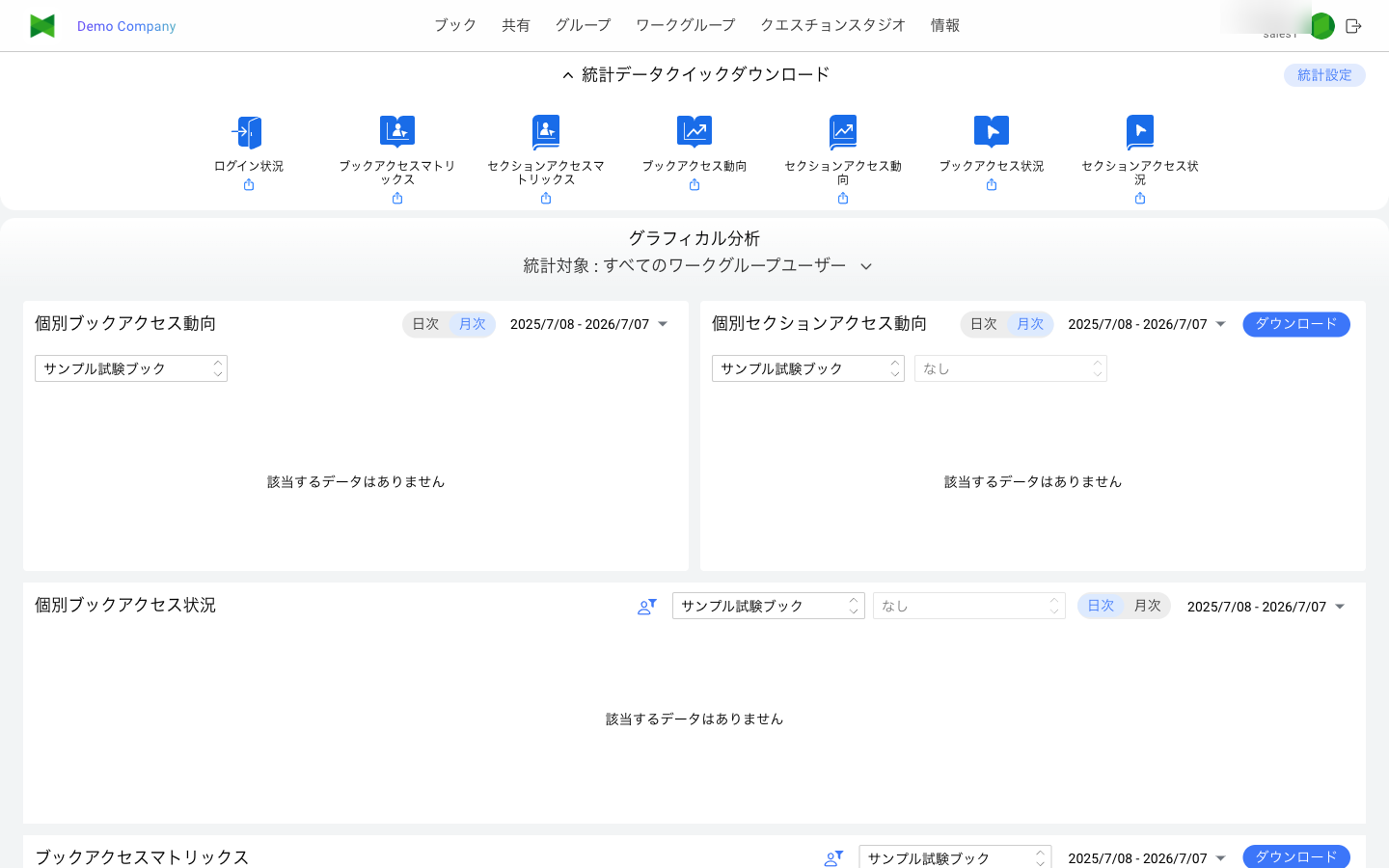
Statistics Settings
Click the "Statistics Settings" link at the top right of the screen to modify statistics-related settings. These settings apply to both Quick Statistics Data Downloads and Graphical Analytics.
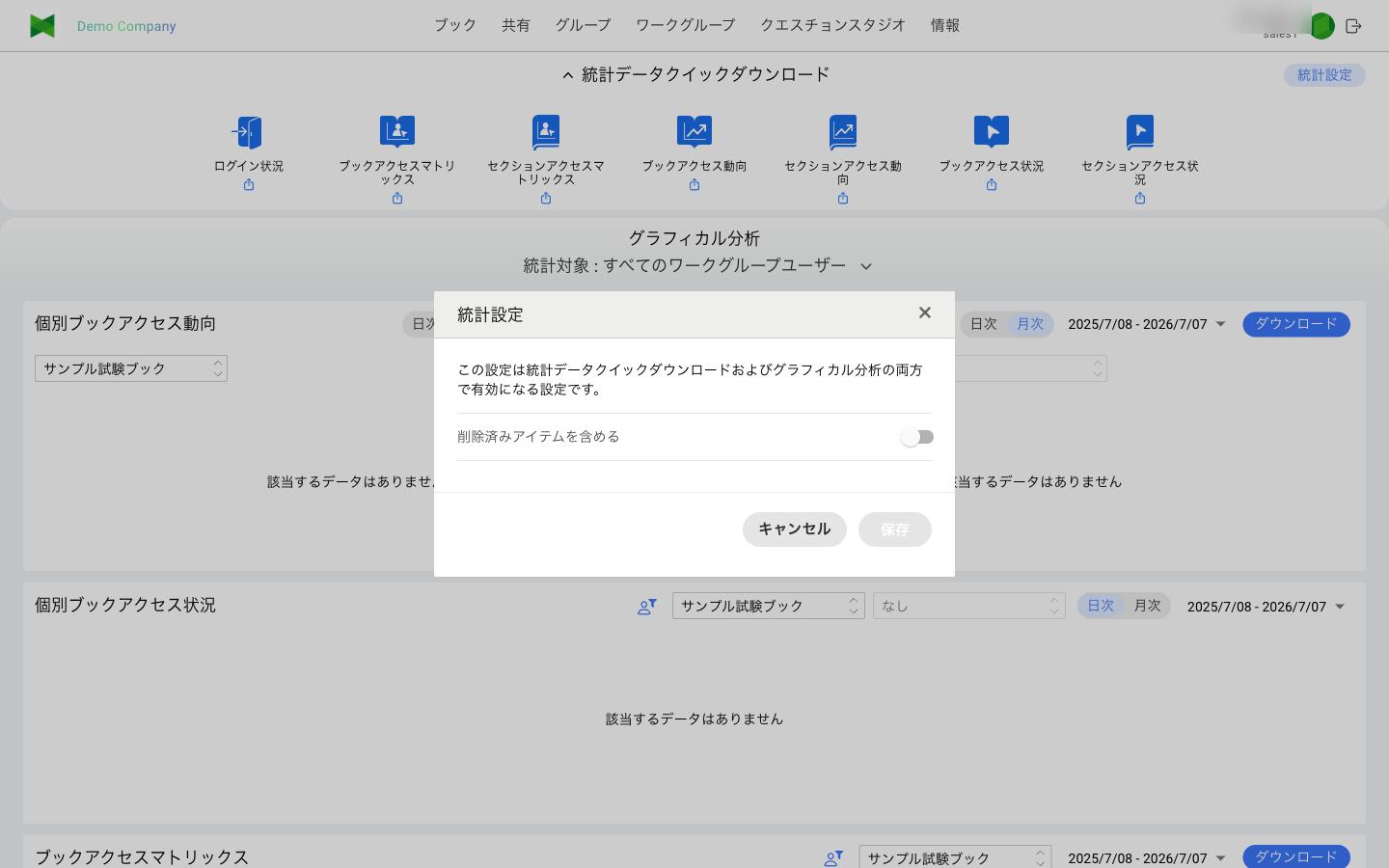
Quick Statistics Data Downloads
In the "Quick Statistics Data Downloads" section at the top of the screen, you can download 7 types of statistics data. Toggle the section expansion/collapse by clicking the header.
About Statistical Target (Common for Downloads)
In each download dialog, you can select the "Statistical Target". The options are as follows:
| Option | Description | Display Condition |
|---|---|---|
| All User | Target all users on the dedicated server | Only for dedicated server with administrator privileges |
| All workgroup users | Target users belonging to workgroups you manage | Always displayed |
| [Workgroup name] | Target only users belonging to a specific workgroup | Displayed for each manageable workgroup |
Note: On the dedicated server plan, a Members field appears in each download dialog. Choosing "All" targets all users in the statistical target, while choosing "Selection" displays a list of users with checkboxes so you can specify individual users for the statistics. This Members field is not displayed on the cloud server plan.
8.2 Login Statistics
Download daily login count data.
Download Settings
| Item | Description |
|---|---|
| Statistical Target | Select the statistical target (see "About Statistical Target" above) |
| Group | Filter by group within the statistical target (optional) |
| Members | Choose "All" or "Selection" to specify individual target users (displayed on the dedicated server plan only) |
| Date Range | Specify the data period (within 1 year from current date) |
| Format | Select CSV or Excel format |
Download Procedure
- Click the "Login Statistics" button
- Specify each setting in the dialog
- Click the "Download" button
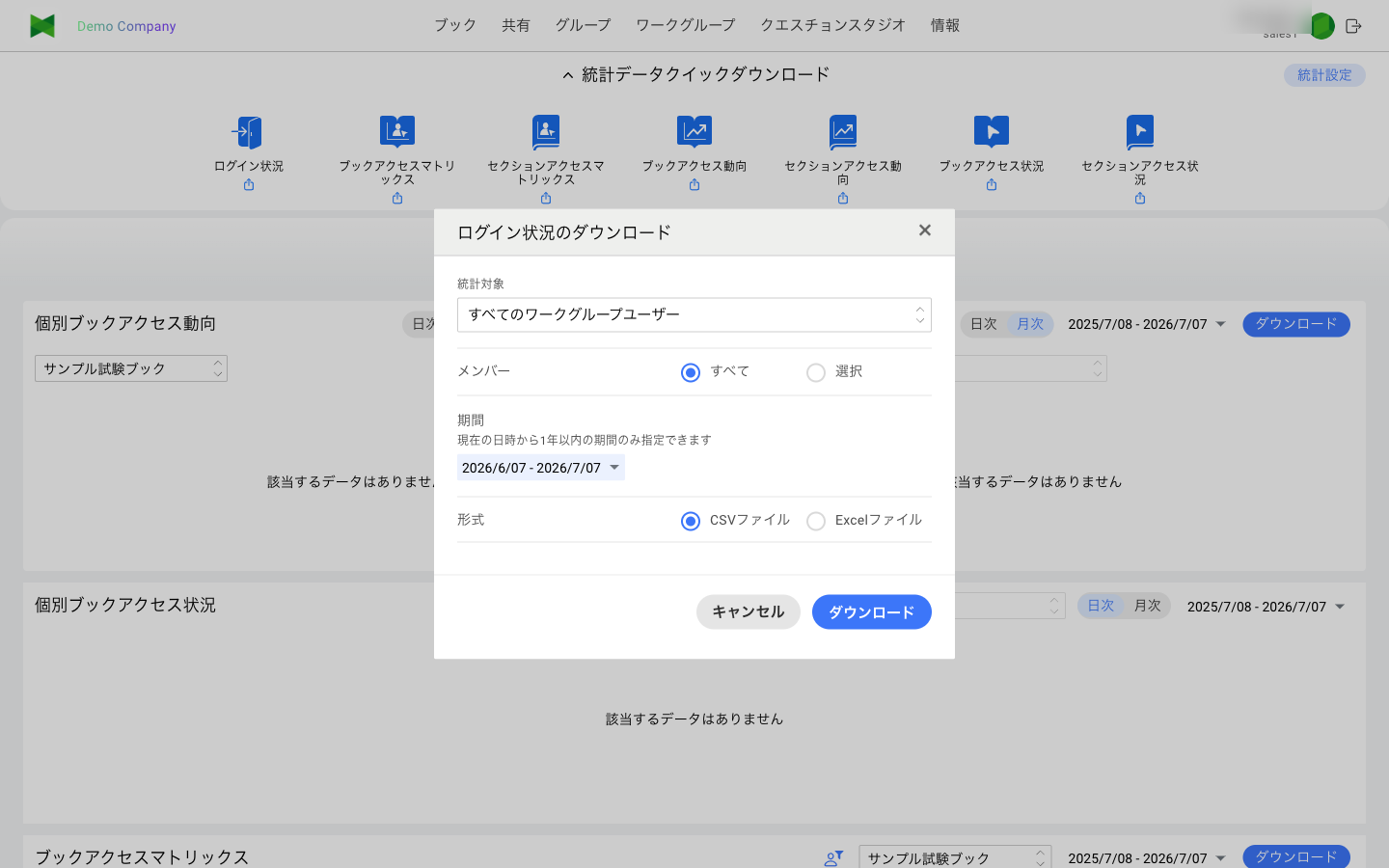
Output Data Contents
| Column | Description |
|---|---|
| Date | The date when logins occurred |
| Number of login | Number of logins on that day |
8.3 Book Access Matrix
Download per-user book access status in matrix format.
Download Settings
| Item | Description |
|---|---|
| Statistical Target | Select the statistical target (see "About Statistical Target") |
| Group | Filter by group within the statistical target (optional) |
| Members | Choose "All" or "Selection" to specify individual target users (displayed on the dedicated server plan only) |
| Books | Select the target book |
| Date Range | Specify the data period (within 1 year from current date) |
| Format | Select CSV or Excel format |
Download Procedure
- Click the "Book Access Matrix" button
- Specify each setting in the dialog
- Click the "Download" button
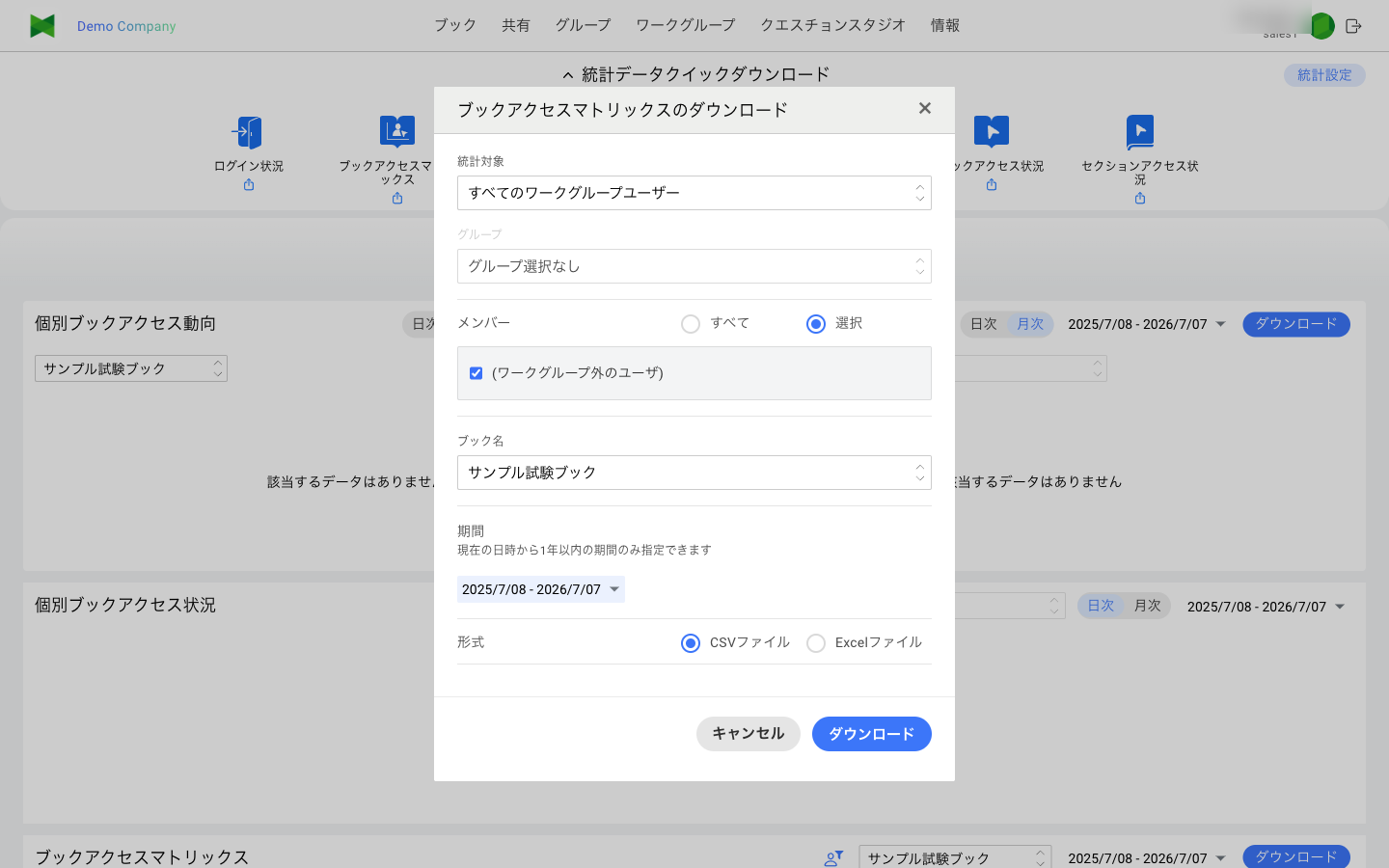
Note: Other download dialogs share the same layout — only the target items (books/sections) differ.
Output Data Contents
Output in matrix format:
| Format | Description |
|---|---|
| Row 1 | Section names (with Number of views for each section) |
| Row 2+ | Each user's row |
| Column 1 | Username (email/full name) and access rate |
| Column 2+ | Access count for each section |
8.4 Section Access Matrix
Download per-user access status for a specific section in matrix format.
Download Settings
| Item | Description |
|---|---|
| Statistical Target | Select the statistical target (see "About Statistical Target") |
| Group | Filter by group within the statistical target (optional) |
| Members | Choose "All" or "Selection" to specify individual target users (displayed on the dedicated server plan only) |
| Books | Select the target book |
| Section | Select the target section (all sections if omitted) |
| Date Range | Specify the data period (within 1 year from current date) |
| Format | Select CSV or Excel format |
Download Procedure
- Click the "Section Access Matrix" button
- Specify each setting in the dialog
- Click the "Download" button
Output Data Contents
Output in matrix format:
| Format | Description |
|---|---|
| Row 1 | Section names (with Number of views for each section) |
| Row 2+ | Each user's row |
| Column 1 | Username (email/full name) and access rate |
| Column 2+ | Access count for each section |
8.5 Book Access Trend
Download book access ranking data by access count.
Download Settings
| Item | Description |
|---|---|
| Statistical Target | Select the statistical target (see "About Statistical Target") |
| Group | Filter by group within the statistical target (optional) |
| Date Range | Specify the data period (within 1 year from current date) |
| Format | Select CSV or Excel format |
Download Procedure
- Click the "Book Access Trend" button
- Specify each setting in the dialog
- Click the "Download" button
Output Data Contents
| Column | Description |
|---|---|
| Book name | Name of the accessed book |
| Rank | Ranking by access count |
| Number of views | Total access count during the period |
8.6 Section Access Trend
Download section access ranking data by access count.
Download Settings
| Item | Description |
|---|---|
| Statistical Target | Select the statistical target (see "About Statistical Target") |
| Group | Filter by group within the statistical target (optional) |
| Date Range | Specify the data period (within 1 year from current date) |
| Format | Select CSV or Excel format |
Download Procedure
- Click the "Section Access Trend" button
- Specify each setting in the dialog
- Click the "Download" button
Output Data Contents
| Column | Description |
|---|---|
| Book name / Section name | Name of the accessed book and section |
| Rank | Ranking by access count |
| Number of views | Total access count during the period |
8.7 Book Access Status
Download daily access status for a specific book.
Download Settings
| Item | Description |
|---|---|
| Statistical Target | Select the statistical target (see "About Statistical Target") |
| Group | Filter by group within the statistical target (optional) |
| Books | Select the target book |
| Date Range | Specify the data period (within 1 year from current date) |
| Format | Select CSV or Excel format |
Download Procedure
- Click the "Book Access Status" button
- Specify each setting in the dialog
- Click the "Download" button
Output Data Contents
| Column | Description |
|---|---|
| Date | The date when accesses occurred |
| Number of views | Access count to the book on that day |
8.8 Section Access Status
Download daily access status for a specific section.
Download Settings
| Item | Description |
|---|---|
| Statistical Target | Select the statistical target (see "About Statistical Target") |
| Group | Filter by group within the statistical target (optional) |
| Books | Select the target book |
| Section | Select the target section |
| Date Range | Specify the data period (within 1 year from current date) |
| Format | Select CSV or Excel format |
Download Procedure
- Click the "Section Access Status" button
- Specify each setting in the dialog
- Click the "Download" button
Output Data Contents
| Column | Description |
|---|---|
| Date | The date when accesses occurred |
| [Section name] | Access count for each section (one column per section) |
Graphical Analytics
The "Graphical Analytics" section allows you to visually view statistics data through graphs and tables.
8.9 Selecting Statistical Target
At the top of the Graphical Analytics section, you can select the statistical target.
Statistical Target Options
The "Statistical Target" dropdown displays the following options:
| Option | Description | Display Condition |
|---|---|---|
| All User | Target all users on the dedicated server | Only for dedicated server with administrator privileges (Owner/Admin) |
| All workgroup users | Target users belonging to workgroups you manage | Always displayed |
| [Workgroup name] | Target only users belonging to a specific workgroup | Displayed for each manageable workgroup |
Operation Procedure
- Click the "Statistical Target" dropdown
- Select the statistical target you want to display
The data for the selected statistical target is reflected in each section below.
Note: The "All User" option is not displayed on cloud versions (non-dedicated server).
8.10 Individual Book Access
Displays the trend of book access counts in a line chart.
Operations
| Operation | Description |
|---|---|
| Daily/Monthly toggle | Switch display unit with "Daily" or "Monthly" buttons |
| Date Range | Change display period with date range picker (default: last 12 months) |
| Book selection | Select a specific book from the dropdown |
Reading the Chart
- Horizontal axis: Date
- Vertical axis: Access count
8.11 Individual Section Access
Displays the trend of section access counts in a line chart.
Operations
| Operation | Description |
|---|---|
| Daily/Monthly toggle | Switch display unit with "Daily" or "Monthly" buttons |
| Date Range | Change display period with date range picker |
| Book selection | Select a book from the dropdown |
| Section selection | Select a section from the dropdown |
| CSV Download | Click "Download" button to download displayed data as CSV |
Reading the Chart
- Horizontal axis: Date
- Vertical axis: Access count
8.12 Individual Access Status
Displays access count trends for specific books and sections in a line chart.
Operations
| Operation | Description |
|---|---|
| User selection | Click the user selection button to select target users for statistics |
| Book selection | Select a book from the dropdown |
| Section selection | Select a section from the dropdown (or select "All Sections") |
| Daily/Monthly toggle | Switch display unit with "Daily" or "Monthly" button |
| Date range | Change the display period with the date range picker |
Reading the Chart
- Horizontal axis: Date
- Vertical axis: Access count
8.13 Book Access Matrix (Graphical Display)
Displays access status per book in matrix format.
Operations
| Operation | Description |
|---|---|
| User selection | Click the user selection button to select target users for statistics |
| Group selection | Filter by group from the dropdown (optional) |
| Book selection | Select a book from the dropdown |
| Date range | Change the display period with the date range picker |
| Excel download | Click "Excel" button to download matrix data |
Display Content
- Vertical axis: Username and access rate (%)
- Horizontal axis: Section names
- Cells: Access count
Color Meanings
Cell background colors are displayed as gradients based on access count:
| Color | Meaning |
|---|---|
| Light gray | No access (0 times) |
| Light blue → Dark blue | Gradient based on access count (darker blue = more accesses) |
8.14 Recent Update Books
Displays a list of recently updated books.
Display Items
- Book cover image
- Book name
- Update content
- Update date/time
8.15 Examination Result
Displays results for books using the examination feature.
Display Items
| Item | Description |
|---|---|
| Examination Books | Name of book containing examination |
| Total Examinee | Number of users who took the examination |
| Average Point | Average score of examinees |
Operations
- Refresh: Click "Refresh" button to get latest data
- Download: Click the
 button for each examination book to download detailed results
Download Settings (Examination Result)
| Item | Description |
|---|---|
| Date Range | Specify the data period |
| Charset | Select UTF-8 or Shift_JIS |
| Include Exam Details | Whether to include answer details |
| Format | Select CSV or Excel format |
8.16 Questionnaire Result
Displays results for books using the questionnaire feature.
Display Items
| Item | Description |
|---|---|
| Questionnaire Books | Name of book containing questionnaire |
| Number of Answers | Number of users who answered the questionnaire |
Operations
- Refresh: Click "Refresh" button to get latest data
- Download: Click the button for each questionnaire book to download detailed results
Download Settings (Questionnaire Result)
| Item | Description |
|---|---|
| Date Range | Specify the data period |
| Charset | Select UTF-8 or Shift_JIS |
| Format | Select CSV or Excel format |
8.17 Largest Size Books
Displays the largest books in ranking format.
Display Items
- Rank
- Book cover image
- Book name
- Size
Useful for managing storage usage.
8.18 Using Client Application
Displays the distribution of client applications used by users.
Display Content
- Pie Chart: Usage ratio by client application
- iOS (iPhone)
- iPadOS (iPad)
- Android
- MacOS (Mac)
- Windows
- Other
Version Breakdown
Click each client application icon displayed below the pie chart to show a bar chart with version details for that client application.
Note: The "Other" category is included in the pie chart but not displayed in the icon list.
8.19 Members/Groups
Displays member and group counts for the workgroup.
Display Items
| Item | Description |
|---|---|
| Manager / Total Members | Number of members with management privileges and total member count |
| Groups | Number of created groups |
8.20 About the Date Range Picker
The date range picker used in each download dialog and Graphical Analytics has the following presets:
| Preset | Description |
|---|---|
| Today | Today only |
| Last 7 Days | Past 7 days |
| Last 30 Days | Past 30 days |
| Last 90 Days | Past 90 days |
| Last 12 Months | Past 12 months |
| Custom | Specify a custom period |
Note: The download date range is limited to within 1 year from the current date.
← Previous: 7. Accounts | Next: 9. Profile / System Information →