
10. Question Studio
Question Studio is the Web UI feature for authoring questions for Examinations and Questionnaires, bundling them into Question Books (exam / questionnaire), and publishing those books to the reader apps.
Note: Question Studio is available only to owner / admin accounts on one of the following plans:
- Team / Business plans
- Dedicated server (Enterprise) deployments
On Free / Personal plans the "Question Studio" entry in the header menu is hidden, and accessing the URL directly returns a
plan_not_allowederror from the backend.Note (difference from iOS/Mac): In the iOS/Mac version, question data was traditionally stored locally on the device. In the Web UI version the data lives on the server, so you can keep editing the same questions and question books from any browser. To reconcile questions authored locally on iOS/Mac with those authored in the Web UI, use 10.8 Sync with Client.
10.1 Screen Layout
Click "Question Studio" in the header menu to open the Question Studio screen. The URL is /question-studio/questions (etc.); the first visit is automatically redirected to the "Questions" tab.
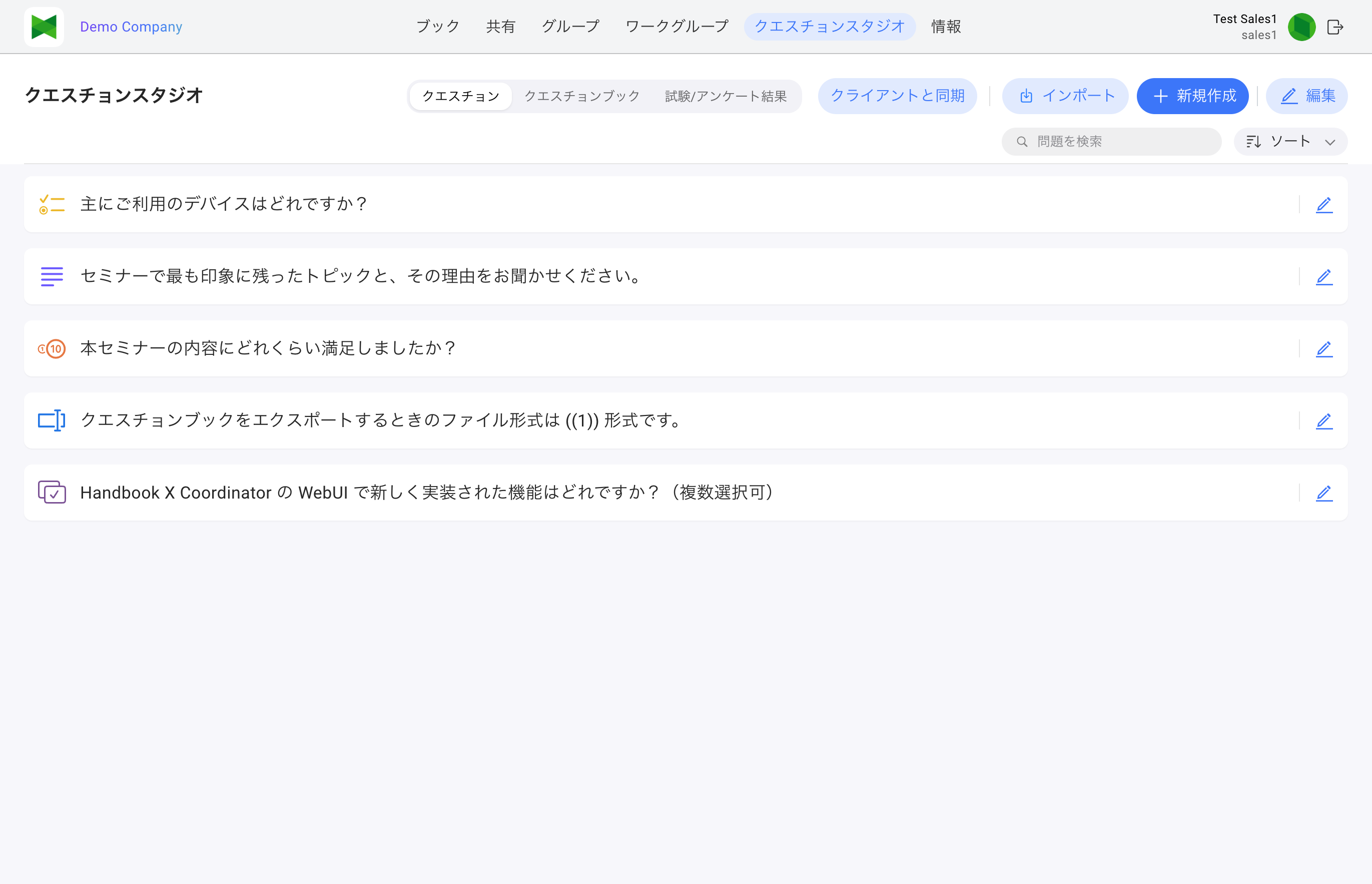
Three tabs appear at the top of the screen.
| Tab | Description | URL path |
|---|---|---|
| Questions | Create and manage individual questions | /question-studio/questions |
| Question Books | Create and manage exam / questionnaire books | /question-studio/books |
| Results | View and download responses to published books | /question-studio/results |
Basic Workflow
- Author questions in 10.2 Questions Tab. Questions are split into two categories: Examination and Questionnaire.
- Create an exam / questionnaire book in 10.3 Question Books Tab and add questions to it in 10.5 Editing a Question Book.
- 10.6 Publish the book so reader-app users can take it.
- Check submissions in 10.7 Results Tab.
10.2 Questions Tab
The tab for authoring individual questions. Authored questions form a library and can be reused across multiple question books.
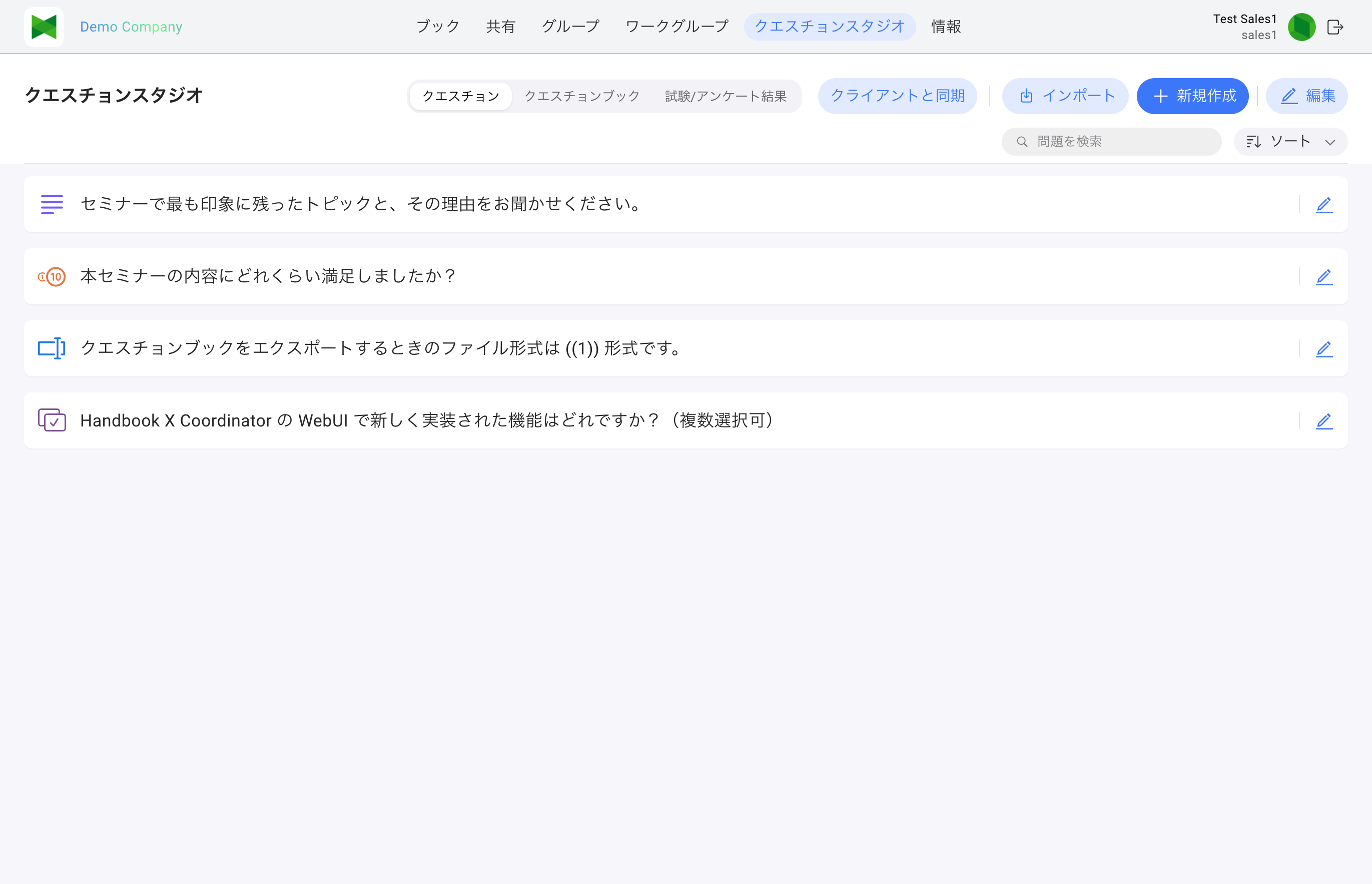
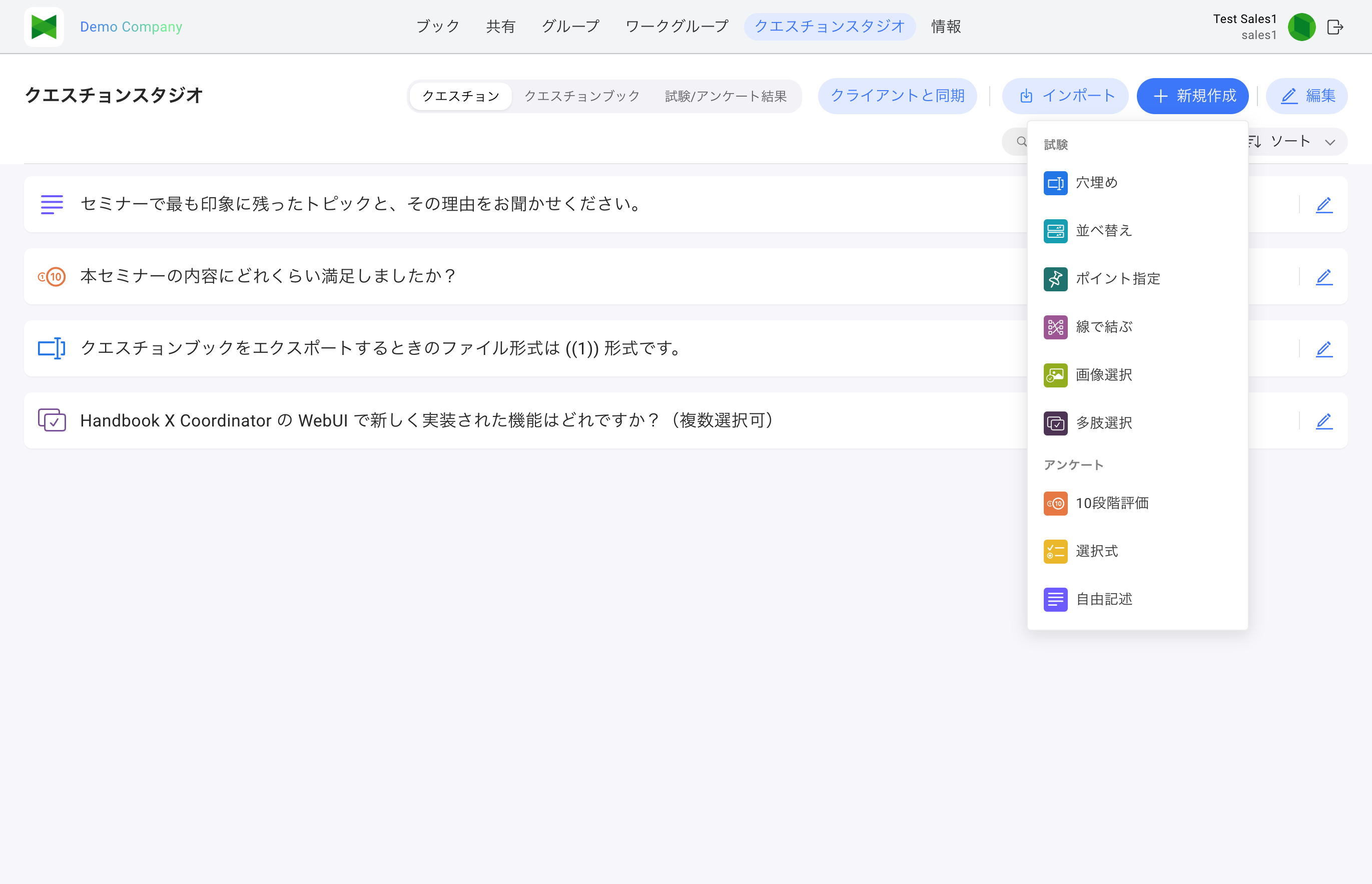
Clicking the Create button opens a menu of question types, split into two sections Examination and Questionnaire, with color-coded icons.
10.2.1 Toolbar (view mode)
In view mode the page-header right side shows:
| Button | Description |
|---|---|
| Import | Import questions from a .qbz archive |
| Create | Pop-up menu with "Examination question types" and "Questionnaire question types". Choose one to open the 10.4 Question Editor |
| Edit | Switch the list to edit mode |
The sub-header below shows a search box and a sort menu (updated / created / title).
10.2.2 Question List
Each row shows a colored icon for the question type and the title (start of the stem). The far right of each row has an edit icon that opens the 10.4 Question Editor.
10.2.3 Edit Mode (bulk actions)
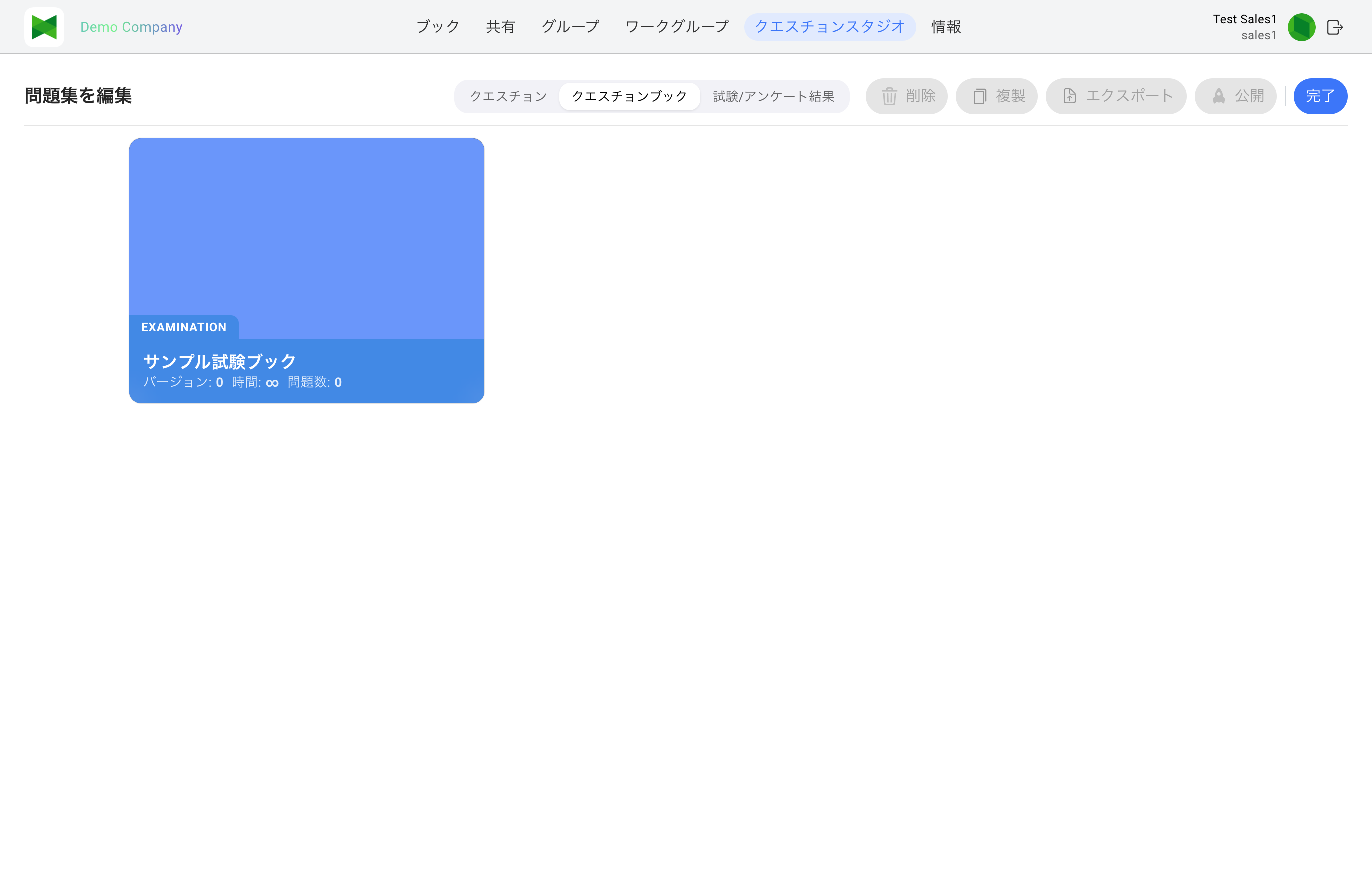
Clicking Edit switches the list to edit mode. A checkbox appears on each row. Once at least one item is selected, the header toolbar changes to:
| Button | Enabled when | Description |
|---|---|---|
| Delete | ≥1 selected | Delete the selected questions (confirmation dialog) |
| Duplicate | ≥1 selected | Duplicate the selected questions (new IDs, same content) |
| Export | ≥1 selected | Export the selected questions to a .qbz file |
| Done | Always | Exit edit mode |
Tip: A "N selected" chip appears on the left of the toolbar; click the × to clear the selection.
10.2.4 Search & Sort
- Search: Matches partially against the question stem in real time. When nothing matches, "No question matches your keyword" is shown.
- Sort: Choose from "Updated · Newest first" (default), "Updated · Oldest first", "Created · Newest first", "Created · Oldest first", "Title · A → Z", or "Title · Z → A".
10.2.5 Import / Export
| Action | Format | Notes |
|---|---|---|
| Import questions | .qbz |
Click Import, choose a file, and it is automatically ingested. The result is reported as a toast: "N imported, K skipped" |
| Export questions | .qbz |
Select items in edit mode, click Export, and a confirmation dialog appears before download starts |
Note (file size): Both import and export are limited to 100 MB per file. Exceeding this yields a
questionStudio_ie_error_tooLargeerror.Note (unsupported attachments): Attachments that do not pass the server's safety / MIME whitelist are silently skipped. A toast such as "Skipped K attachments because their format is unsupported" is shown.
10.3 Question Books Tab
This tab is where you bundle authored questions into an exam book or questionnaire book and prepare them for delivery to reader-app users.
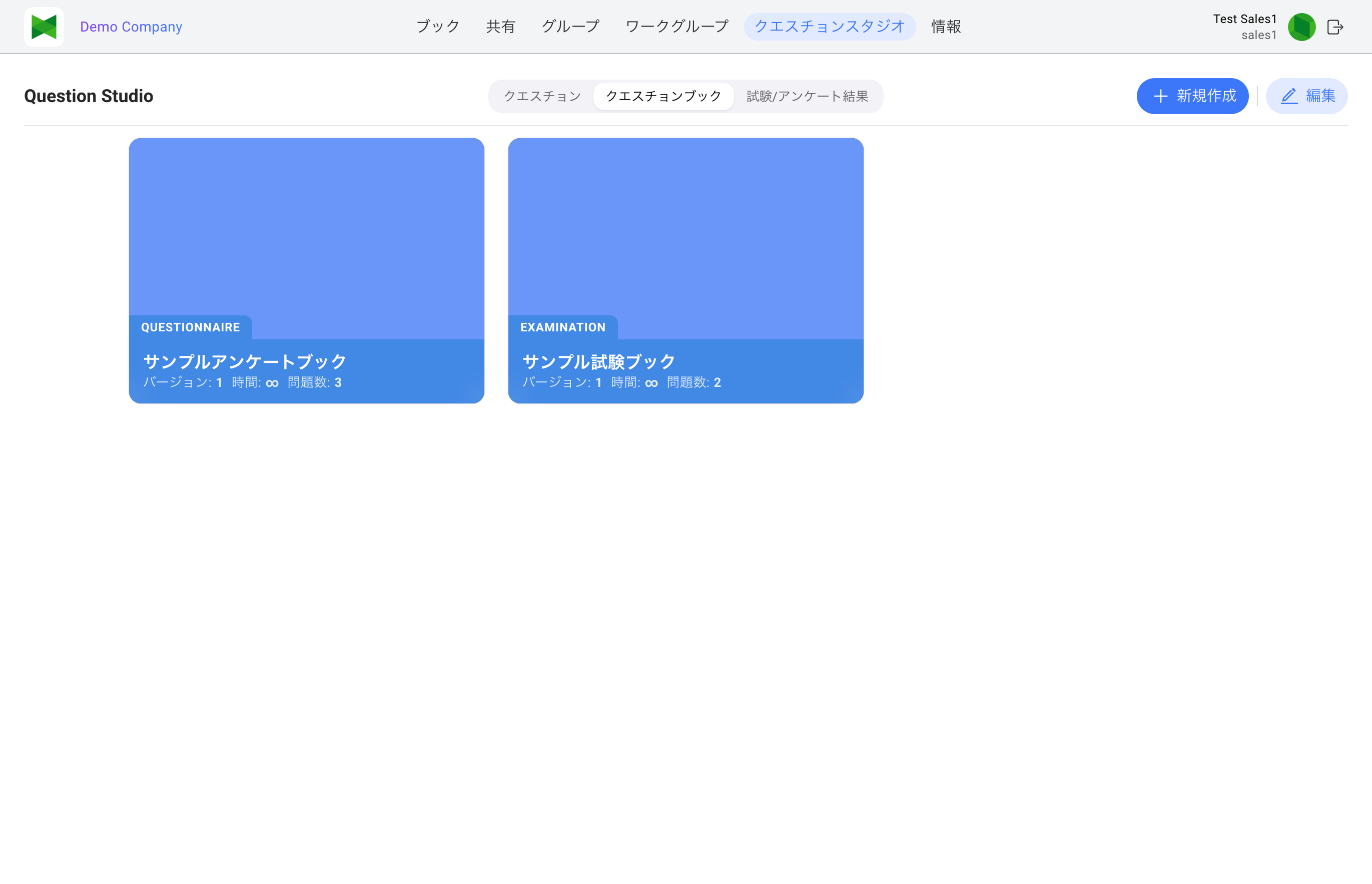
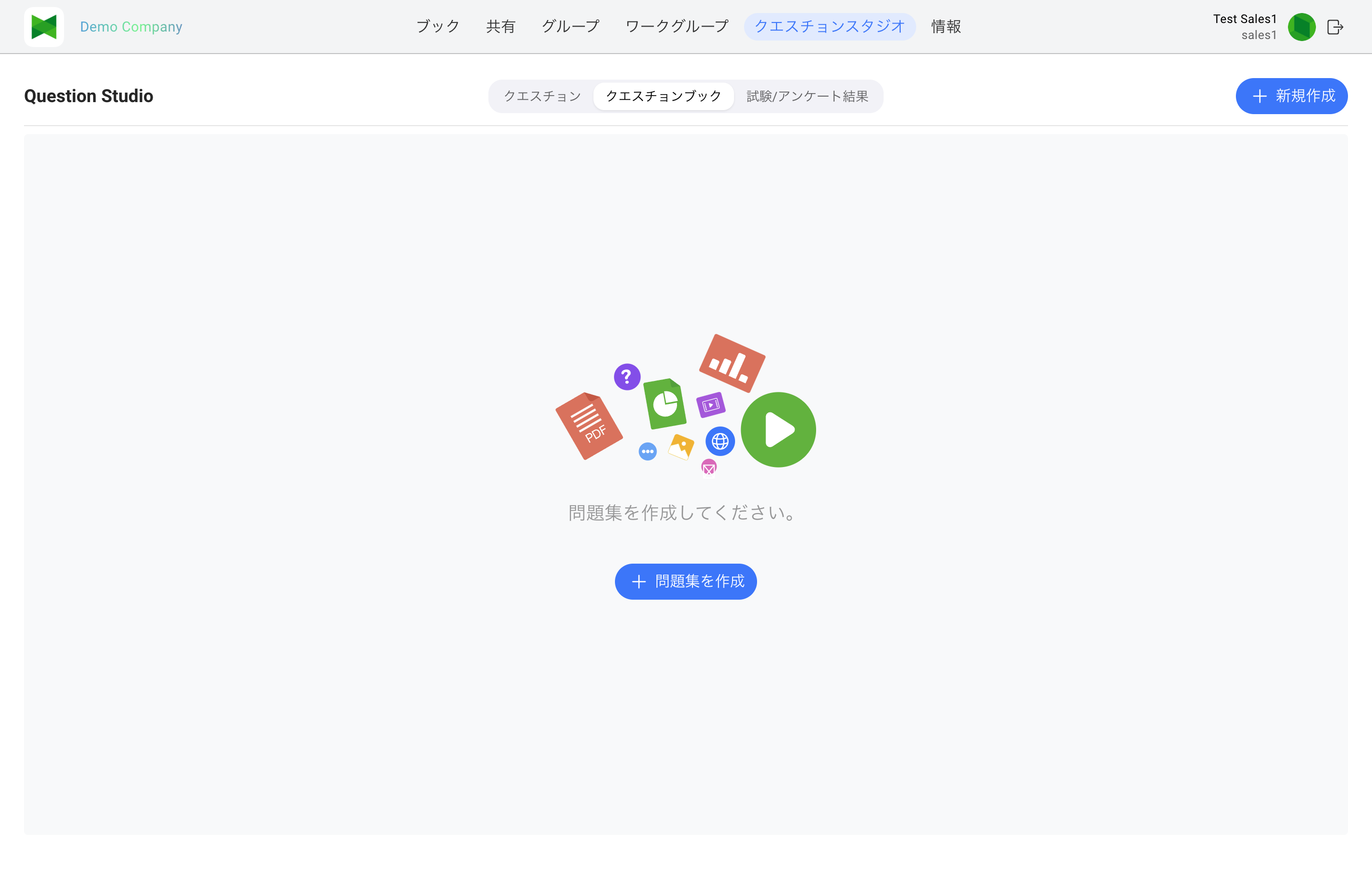
When no books have been created yet, the tab shows an empty-state illustration with a Create Book button in the middle.
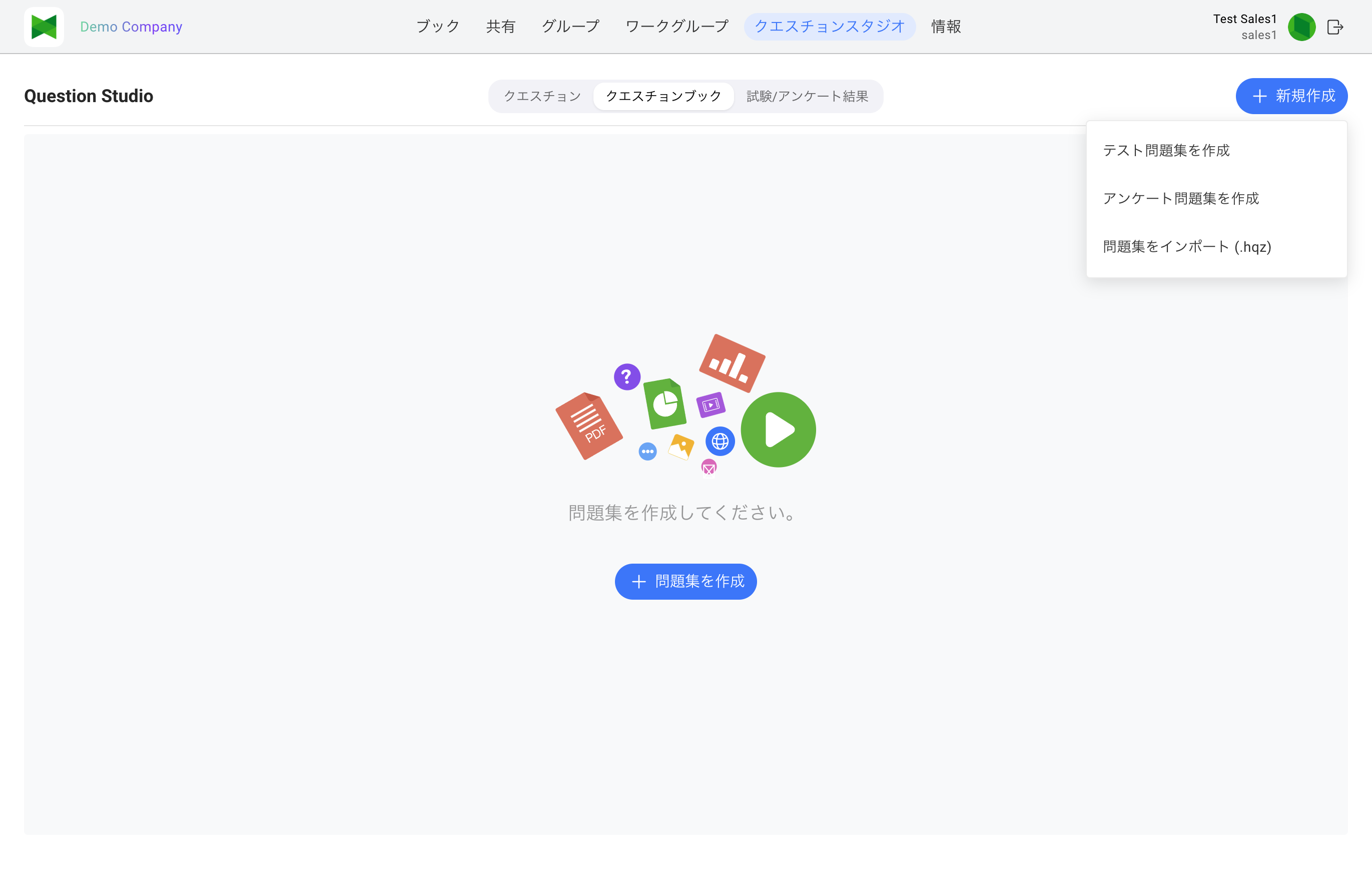
The Create button on the toolbar opens the following pop-up menu.
10.3.1 Toolbar (view mode)
| Button | Description |
|---|---|
| Create | Pop-up menu: · Create Examination Book (with correct answers / scoring) · Create Questionnaire Book (no correct answer) · Import Questionnaire Book (.hqz) (import an existing book) |
| Edit | Switch the list to edit mode |
Note: Unlike the Questions tab, the Question Books tab does not show a search box or a sort menu.
10.3.2 Book List (cards)
Each existing question book is displayed as a card containing:
| Field | Description |
|---|---|
| Cover image | Book cover |
| Type badge | EXAMINATION or QUESTIONNAIRE |
| Title | Book title |
| Revision | Version number, incremented on each publish |
| Time | Time limit in minutes; ∞ means no limit |
| Question count | Number of questions contained in the book |
10.3.3 Create Book Dialog
Choosing Create Examination Book or Create Questionnaire Book opens a dedicated dialog for each type.
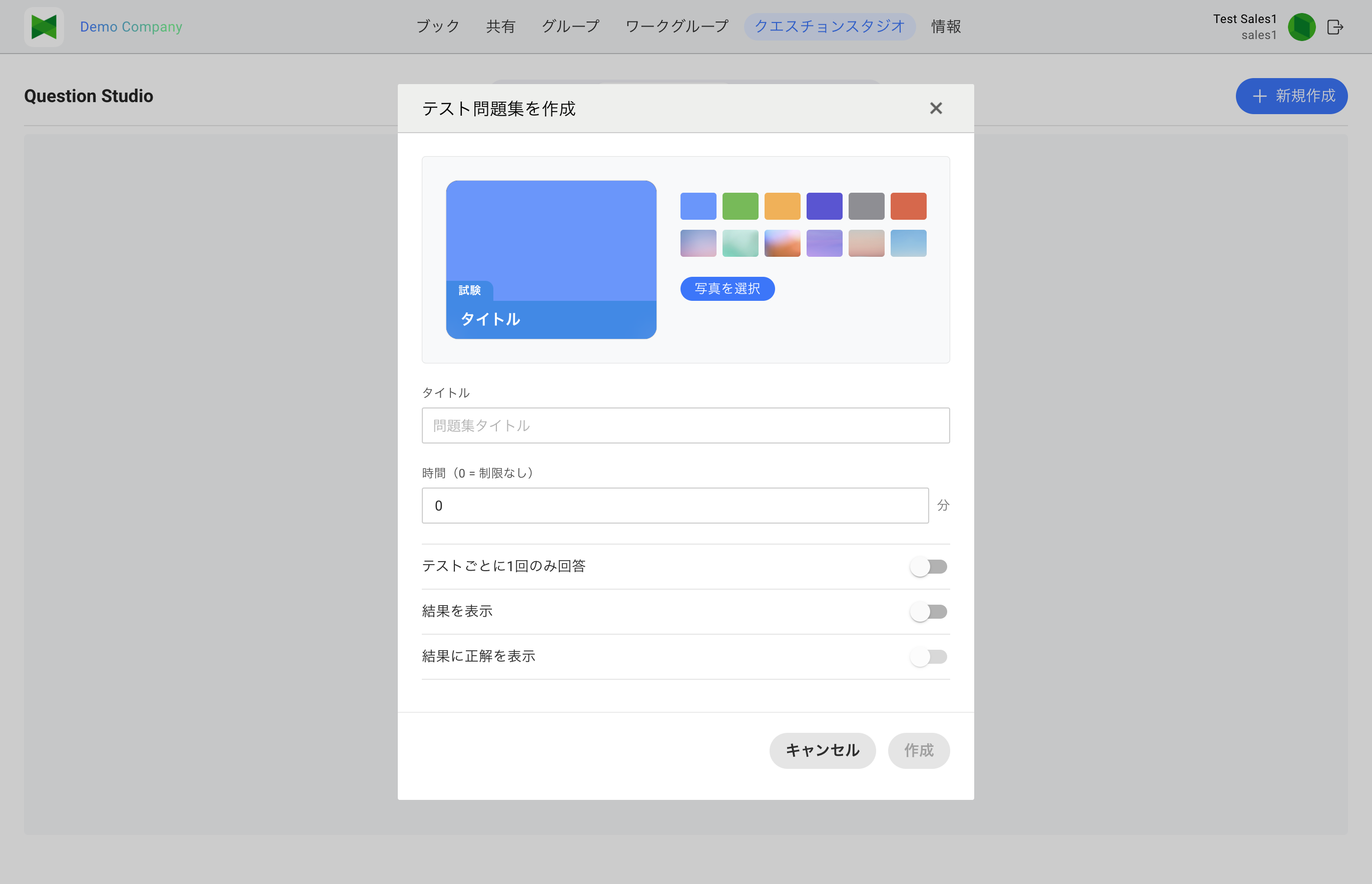
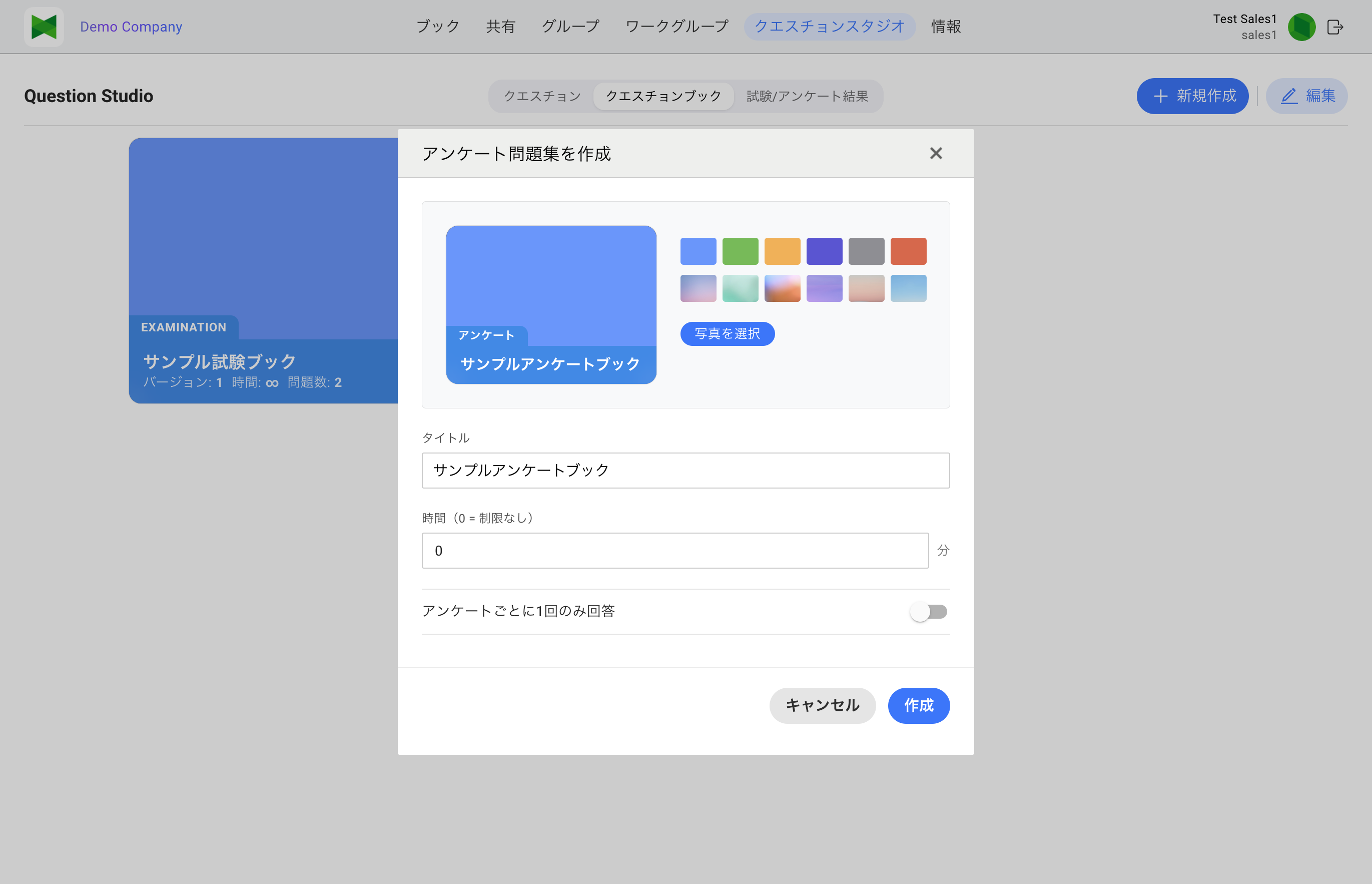
Exam books have both Show Results and Show Correct Answers in Results toggles. Questionnaire books have only the "Only one response" toggle (no result-related toggles because there is no scoring).
| Field | Description |
|---|---|
| Cover | Previewed at the top of the dialog. Pick from the built-in default covers on the right, or use Choose Photo to upload your own image |
| Title | Required. The Create button is disabled while empty |
| Time (0 = no time limit) | Enter minutes. 0 means no time limit |
| Only one response | When on, each user can submit only once. The label switches between "Only one attempt per exam" / "Only one response per survey" depending on the book type |
| Show Results (Exam only) | When on, the result page is shown after submission |
| Show Correct Answers in Results (Exam only) | When on, the result page shows each question's answer and correct answer side by side. This toggle is disabled while Show Results is off |
Note: "Show Correct Answers in Results" (
showCorrectAnswers) was newly introduced with the Web UI addition in June 2026. Existing books default to off.
10.3.4 Edit Mode (bulk actions)
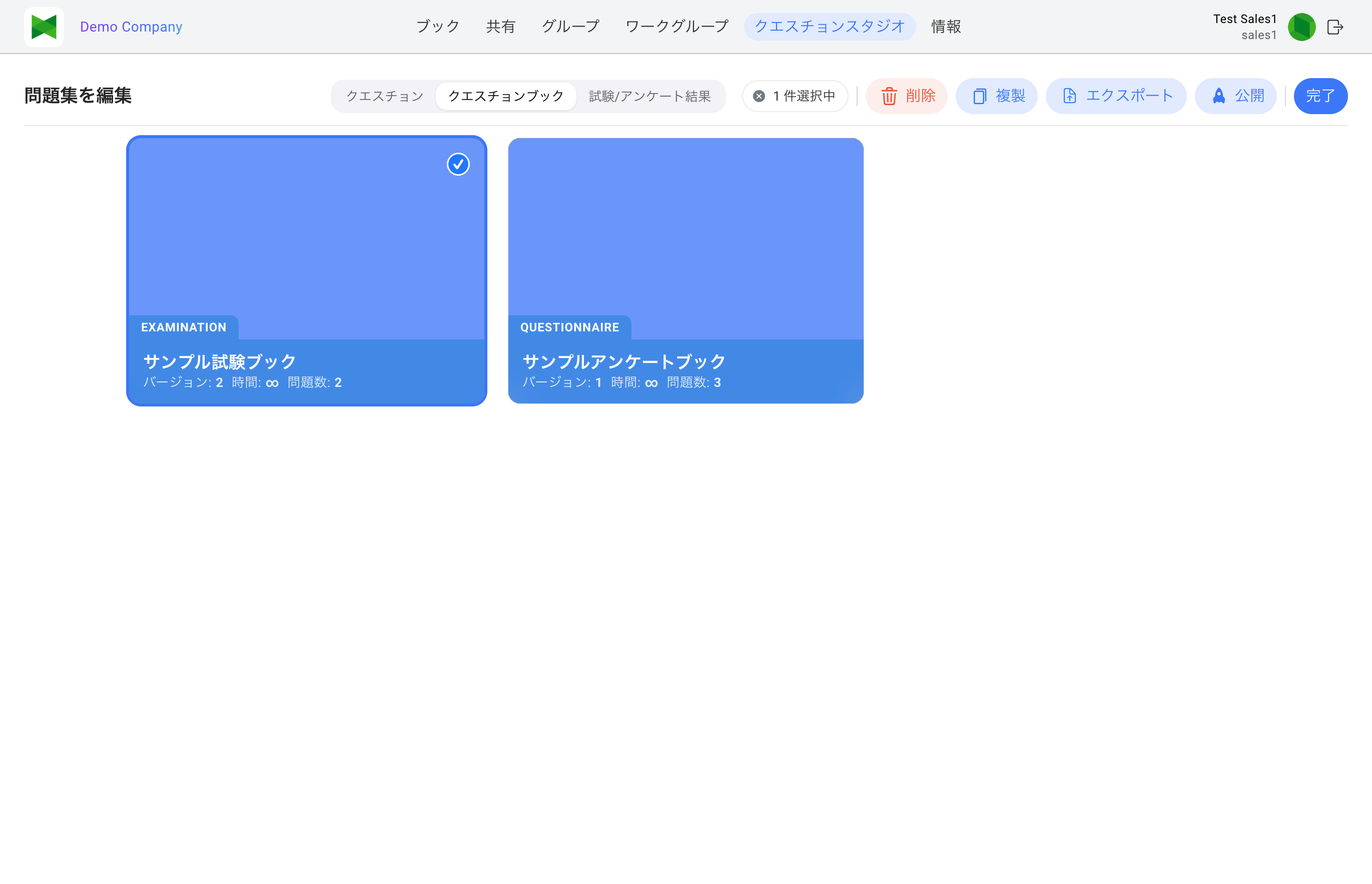
Edit mode reveals checkboxes on each card. With at least one card selected you can use:
| Button | Enabled when | Description |
|---|---|---|
| Delete | ≥1 selected | Delete the selected books |
| Duplicate | ≥1 selected | Duplicate the selected books (questions are included) |
| Export | ≥1 selected | Export the selected books to a .hqz file |
| Publish | ≥1 selected | Publish the selected books. → 10.6 Publishing |
| Done | Always | Exit edit mode |
Note: While in edit mode the page title changes to "Edit Question Books". When one or more books are selected, an "N selected" chip appears in the middle of the toolbar and the Delete / Duplicate / Export / Publish buttons become enabled.
10.4 Question Editor
Open the question editor (/question-studio/questions/:id/edit) either by picking a question type from the Create menu on the Questions tab, or by clicking the edit icon on an existing question row.
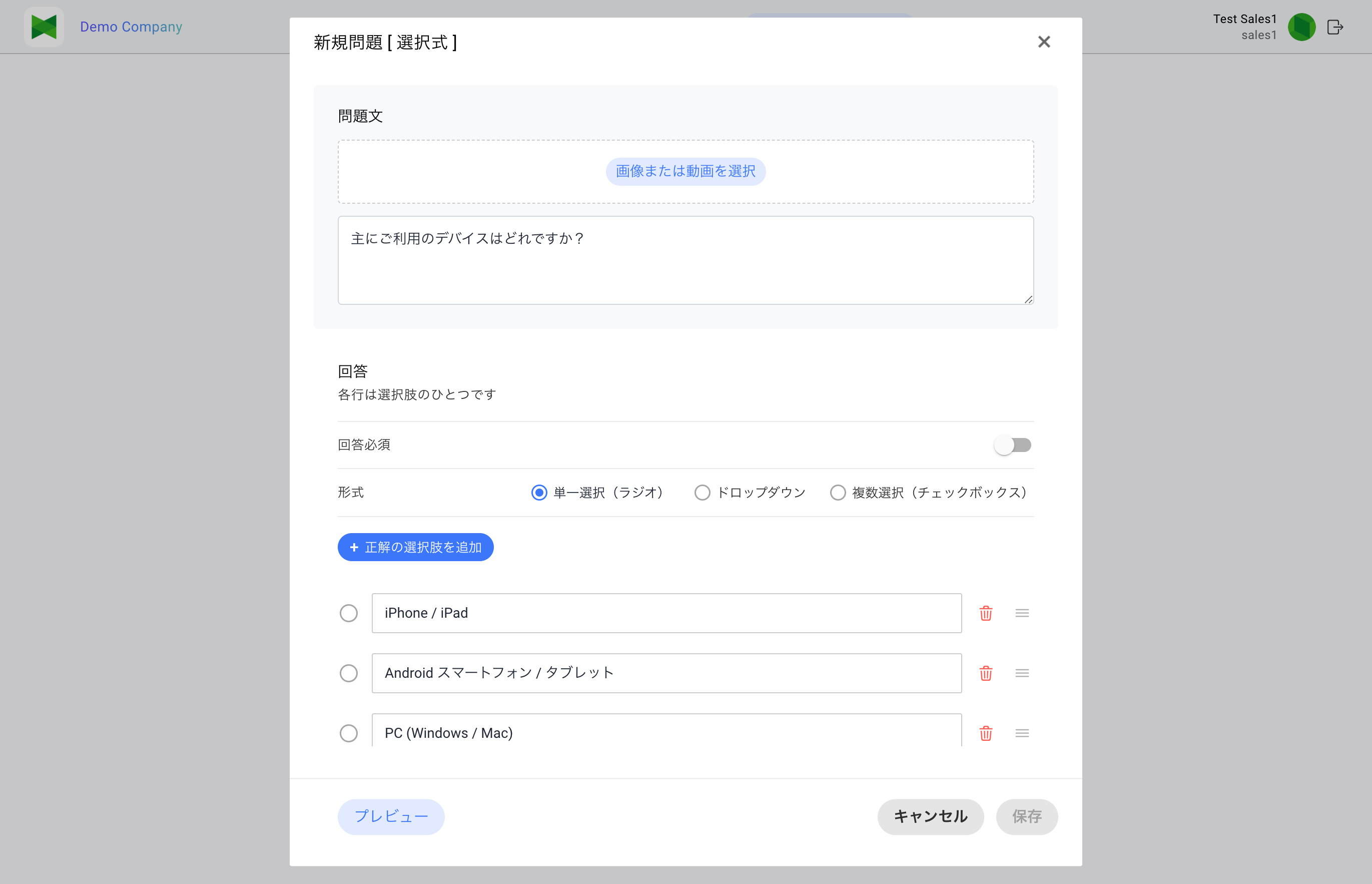
For a questionnaire's Selective type, you can switch between Radio (single) / Dropdown / Checkbox (multi) and add options.
10.4.1 Common Layout
| Area | Description |
|---|---|
| Header | Back / Save buttons and the question-type name |
| Media | Attach an image or a movie (up to 100 MB). Movie support depends on the question type: FillBlank / Order / Connect / Select / SelPic accept both images and movies; Point accepts images only |
| Stem | Text area for the question body |
| Answer area | UI varies per question type (see 10.4.3) |
10.4.2 Question Categories
Question Studio has two categories:
- Examination: Questions with correct answers and scoring. Used inside exam books.
- Questionnaire: Questions without correct answers, used to collect responses. Used inside questionnaire books.
The Create menu groups its color-coded buttons by category.
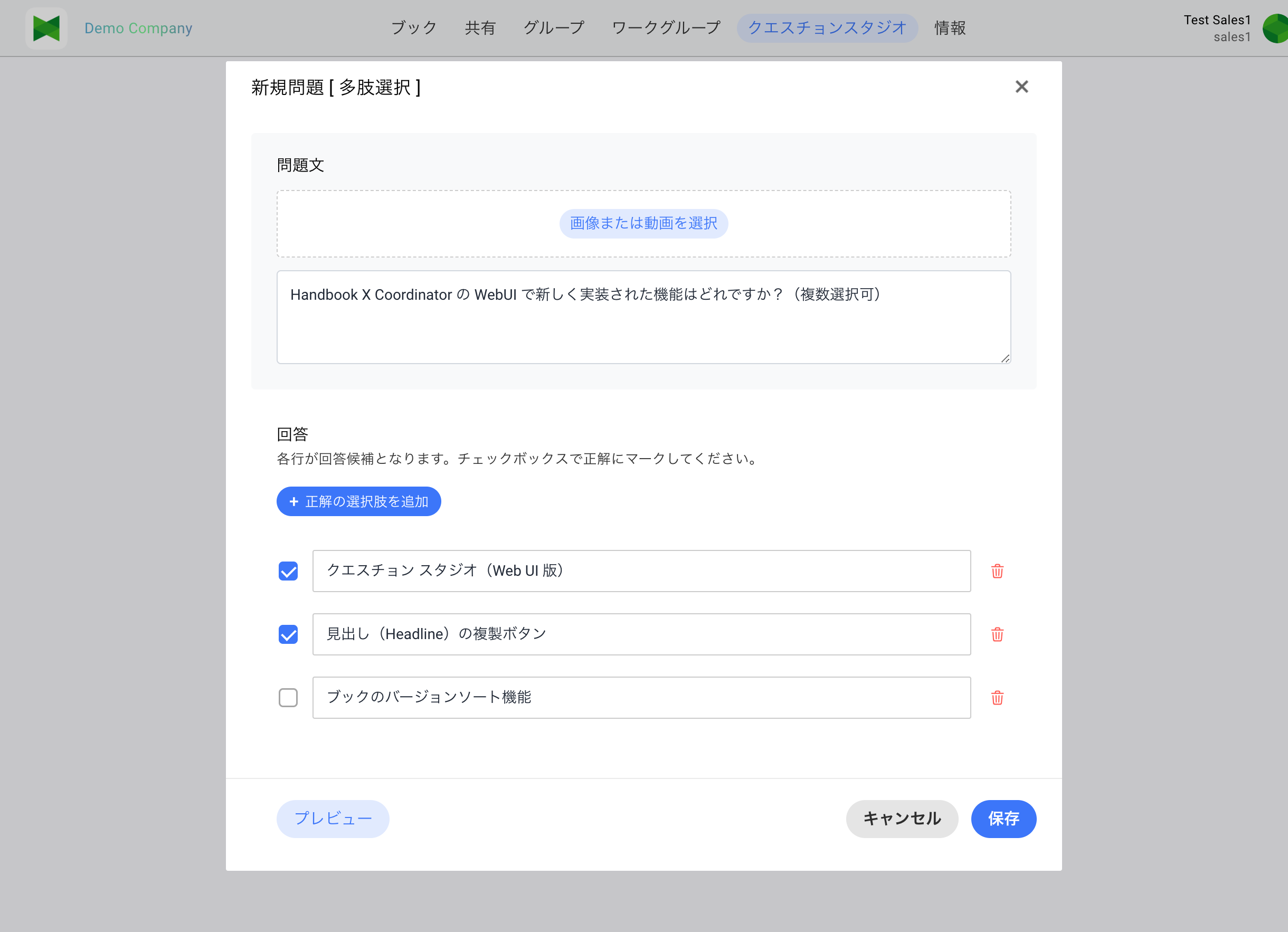
10.4.3 Examination Question Types (6)
| Type | Internal id | Overview |
|---|---|---|
| Fill in the Blank | blanks |
Insert ((1)), ((2))... placeholders in the stem. Each blank can have multiple accepted correct answers |
| Order | order |
Register items whose top-to-bottom order is the correct answer. The examinee drags to reorder |
| Point | point |
Upload a single answer image and place pins on it. Tap a pin again to mark it as correct (it turns green) |
| Connect | connect |
Register left / right pairs. The examinee draws lines to connect the correct pairs |
| Select | select |
Register text options and check the correct ones. Multiple correct answers are allowed |
| Picture Select | selPic |
Options are images (with optional text labels). Check the correct image(s) |
Fill in the Blank
- Insert
((1)),((2)), ... numbered placeholders into the stem. The Add answer field button inserts one at the current caret position. - Below the stem, each placeholder gets its own list of correct answers. You can register multiple accepted variants per blank.
Order
- Register items top-to-bottom in the correct order.
- Use Add Answer Field to add a row, the drag handle to reorder, or the trash icon to delete (deleting is disabled once only 2 items remain).
- At least 3 items are required to save.
Point
- Use Add image to upload the answer image (movies are not supported here).
- Click on the image to place a pin. Pins are automatically labeled A, B, C, ...
- Each pin has an answer text field and a correct checkbox. Correct pins are displayed in green.
Connect
- Use Add paired answer to add pairs.
- Fill in the left and right text for each pair; one row is one correct pairing.
Select
- Enter text for each option and use Add correct answer option to add more.
- Check the checkbox on the right to mark at least one correct answer; multiple correct answers are allowed.
Picture Select
- Use Add picture to add image options. You can also attach an optional text label.
- Check the checkbox to mark each image as correct. At least 2 pictures and at least 1 correct picture are required.
10.4.4 Questionnaire Question Types (3)
| Type | Internal id | Overview |
|---|---|---|
| Scale (0–10) | scale |
11-step scale from 0 to 10. No options to configure (the scale is rendered automatically). Handy for NPS-style surveys |
| Selective | selective |
Choose the display style (Radio / Dropdown / Checkbox) and register options |
| Free Text | freeText |
Free-form text response. No options to configure |
Every questionnaire question has an "Answer required" toggle. When on, the respondent cannot submit without answering.
Selective sub-types
| Sub-type | Behavior |
|---|---|
| Radio (single) | Radio buttons, one option can be selected |
| Dropdown | Dropdown list, one option can be selected |
| Checkbox (multi) | Multiple options can be selected |
For Radio / Dropdown, the checkmark acts as the default selection, so you must check exactly one option (validated by selectiveErrSingleCorrect).
10.4.5 Saving
The Save button persists the question to the server. If validation fails, "Please fix issues before saving." is displayed and inline red messages appear.
10.5 Editing a Question Book (Book Detail)
Clicking a book on the Question Books tab, or selecting one in edit mode and clicking "Edit", opens the Book Detail view (/question-studio/books/:uuid/edit).
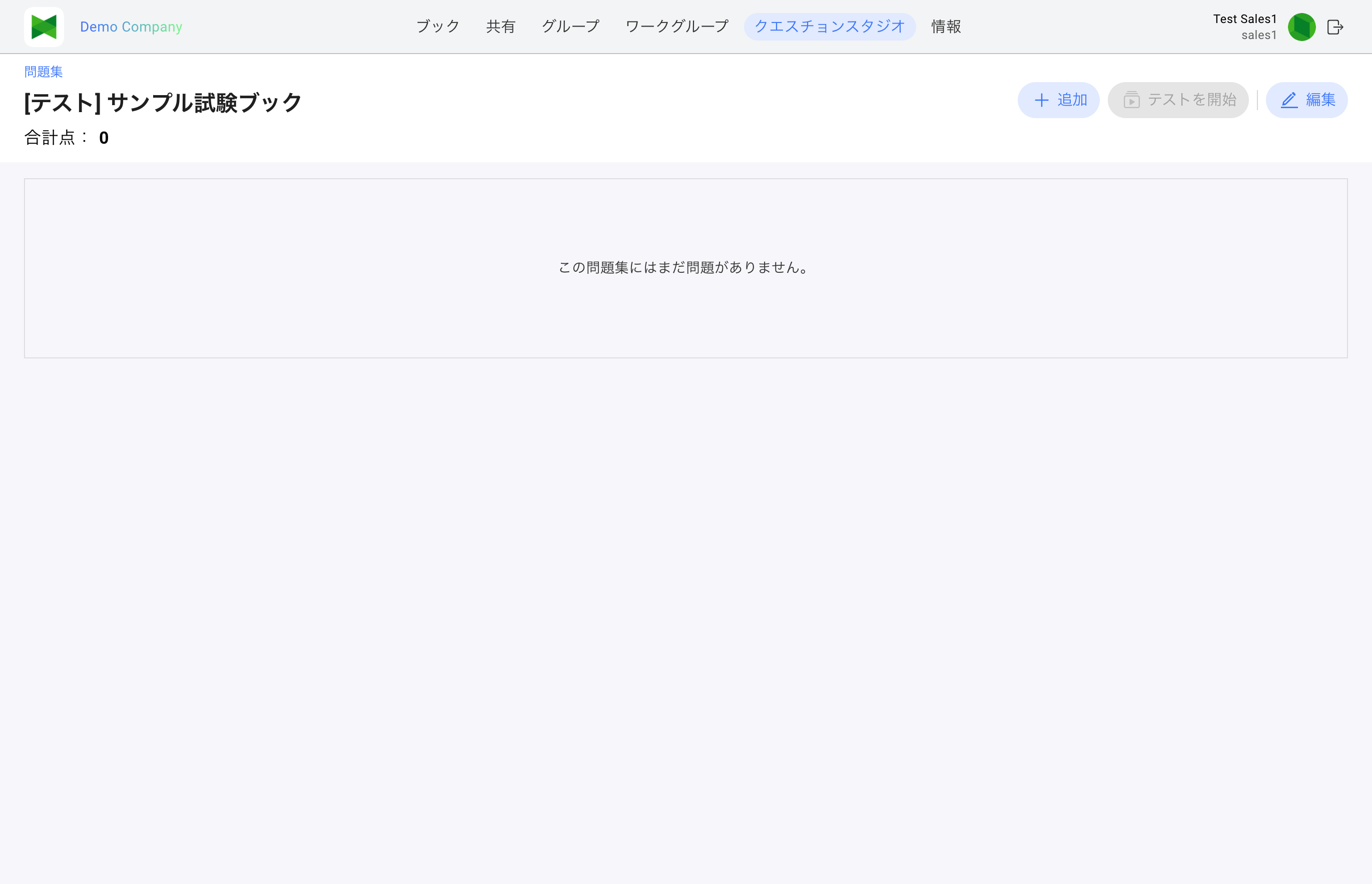
Newly created exam books start with no questions.
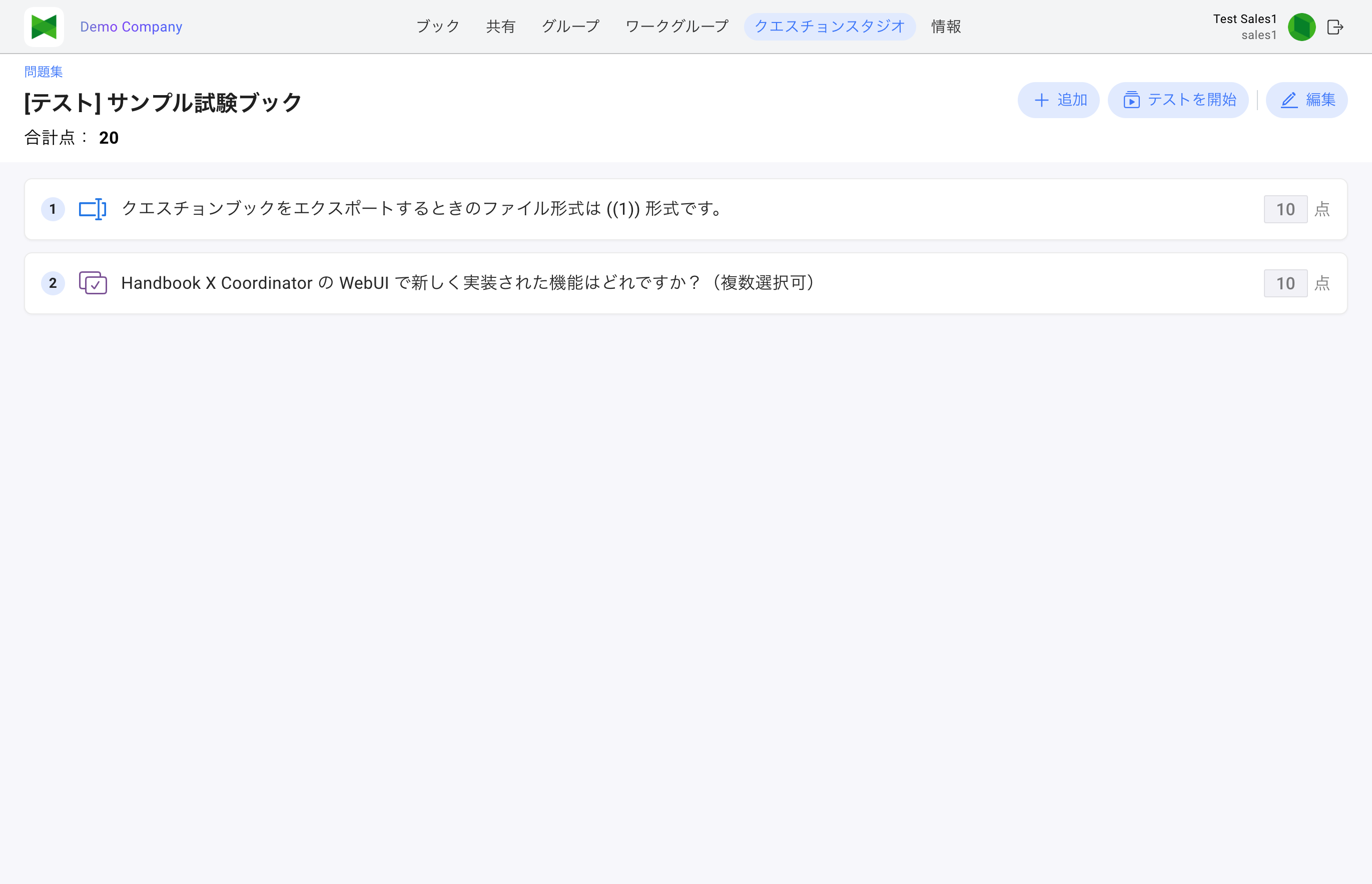
After adding questions, each row shows the number, type icon, stem, and point value.
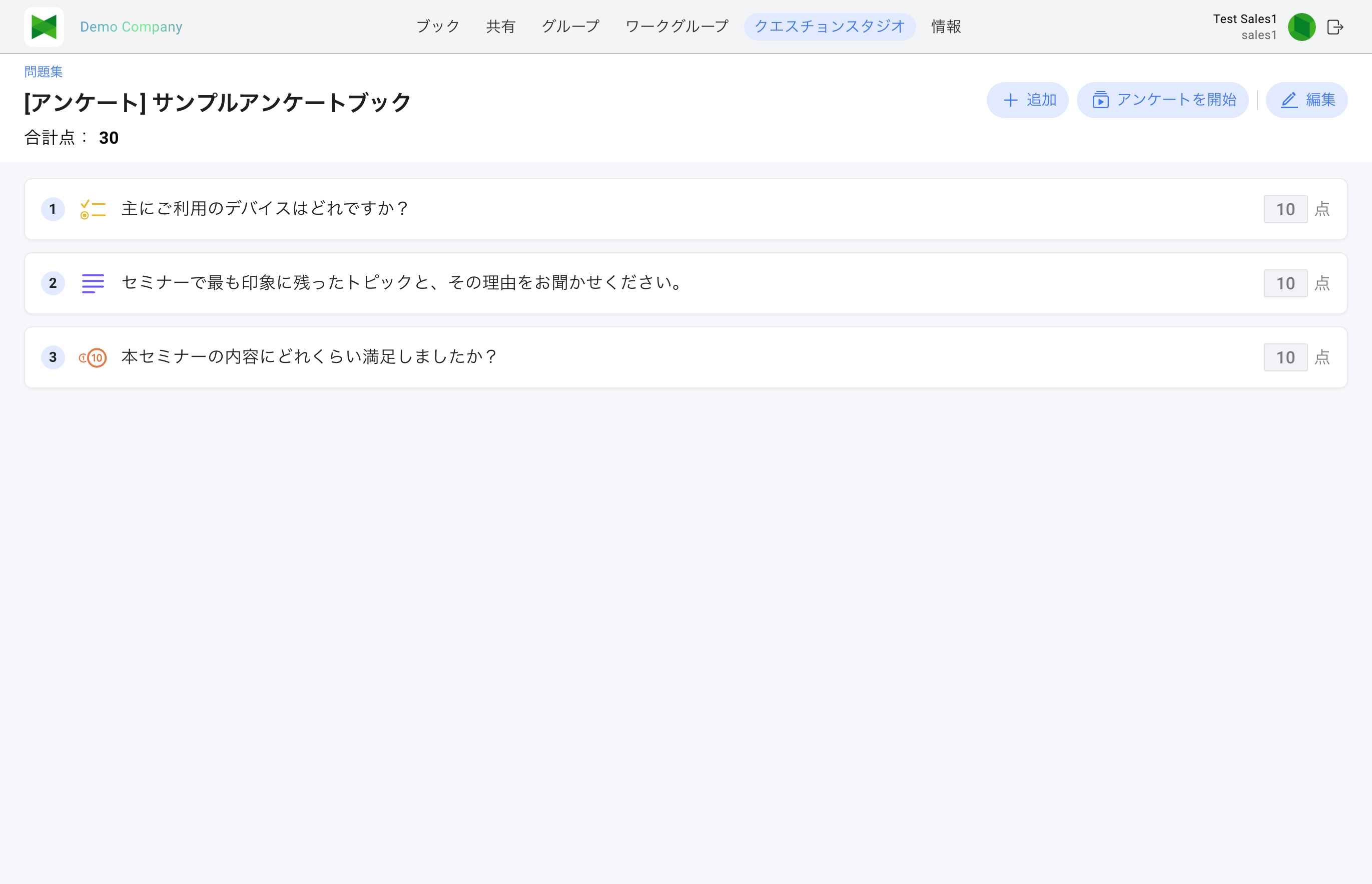
Questionnaire books have a Start Questionnaire button instead of "Start Examination". The point value fields and the "Total Points" indicator are displayed just like on exam books (they are not grayed out) and can even be edited in edit mode, but since questionnaire responses are not scored, these values have no effect on the results.
10.5.1 Screen Layout
| Area | Description |
|---|---|
| "Question Books" link | A link shown above the title (top-left of the page). Click it to return to the Question Books tab list |
| Title | [Exam] Title or [Survey] Title. Edit mode changes it to "Edit …" |
| Toolbar | "Add", "Start Examination / Start Questionnaire", "Edit" |
| Sub-header | "Total Points: N" (sum of each question's points; also shown for questionnaire books) |
| Question list | Questions in this book. In view mode the row shows number / type icon / stem / points |
10.5.2 Adding Questions (Add)
The Add button opens the Add Questions dialog with the library from 10.2 Questions Tab. Only examination questions can be added to exam books, and only questionnaire questions to questionnaire books.
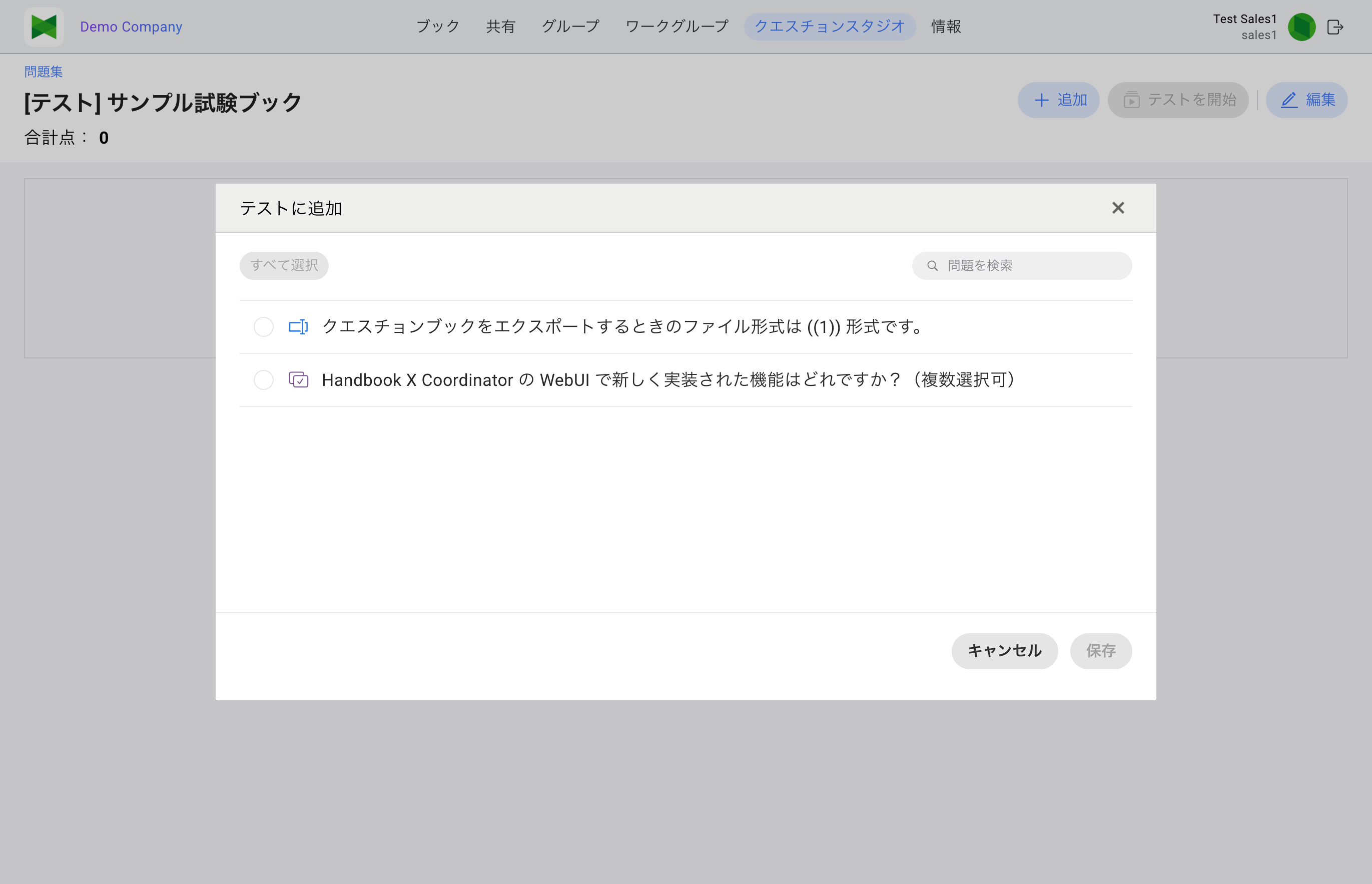
Select one or more questions and click Save to append them to the book.
10.5.3 "Start Examination" / "Start Questionnaire" (Preview)
Clicking Start Examination or Start Questionnaire opens the same Question Player used by the reader app in a new page (/question-studio/books/:uuid/play) so you can preview exactly how the book will look.
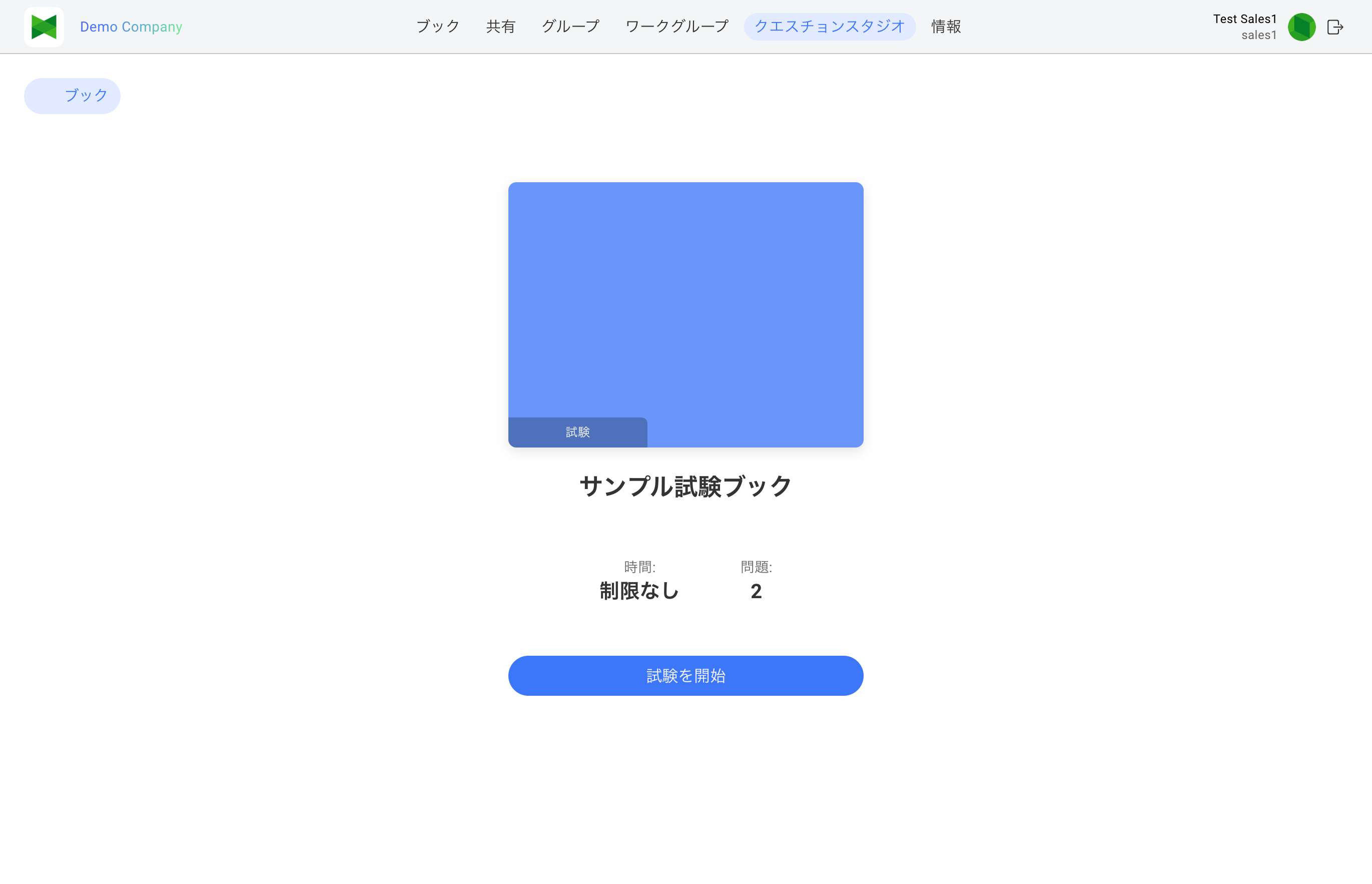
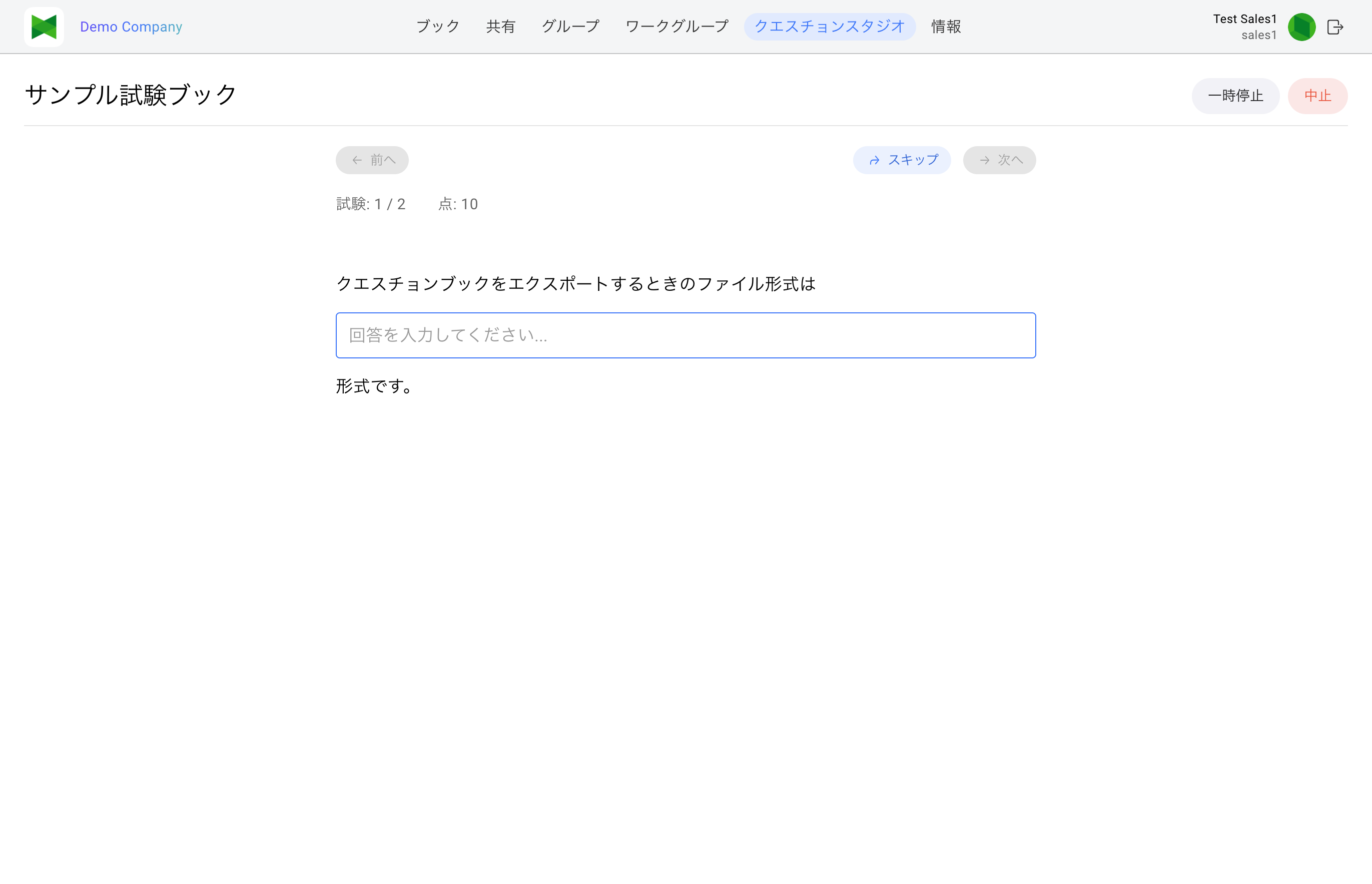
- The rendering is identical to what reader-app users see.
- Preview submissions are not persisted (they do not show up in the Results tab).
- On exam books with Show Results enabled, a preview result page is shown after submit; if Show Correct Answers in Results is also on, correct answers appear alongside the responses.
10.5.4 Edit Mode
Click the Edit button (pencil icon) to enter edit mode:
- A checkbox appears on the left of each row so you can select multiple questions.
- A drag handle appears on the right so you can reorder questions.
- The Delete button removes the selected questions from this book (the questions themselves remain in the library).
- Points can be edited inline in each row.
- For Fill-in-the-Blank questions, Set Partial Points lets you assign points per blank (see 10.5.5).
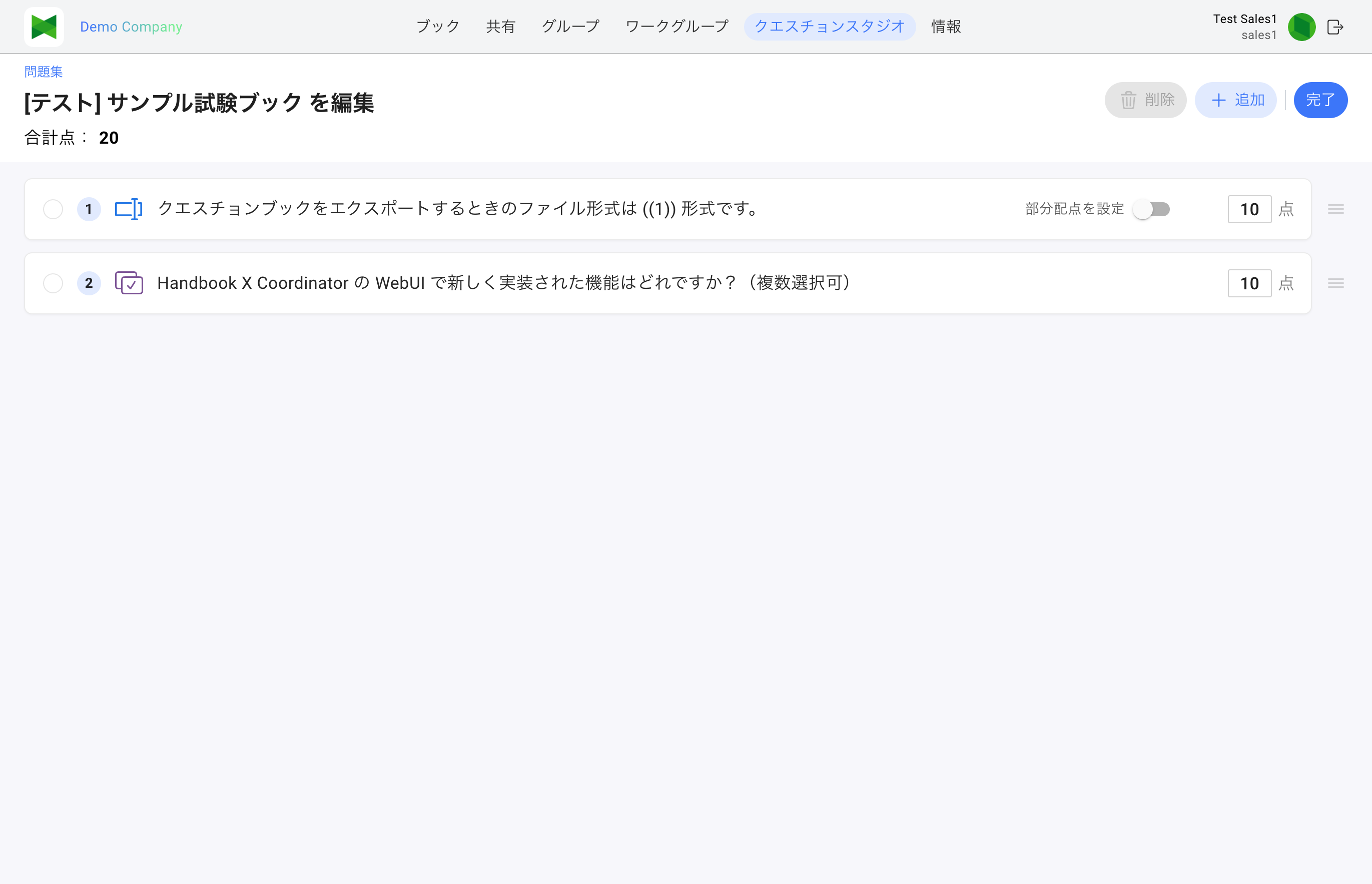
Click Done to save changes.
Note (version conflict): If another browser or admin updates the same book, "Another user updated this book. Reloading the latest version." appears and the latest version is loaded automatically.
10.5.5 Partial-Point Scoring
Partial points can be configured only for Fill-in-the-Blank questions. In edit mode, a Set Partial Points switch appears on each Fill-in-the-Blank row.
With partial points on, a sub-row appears for each blank (((1)), ((2)), ...) so you can assign points per blank. The question total automatically becomes the sum of the per-blank values and can no longer be edited directly. If the per-blank values do not add up to the question total, saving fails with an error such as "The sum of per-blank points (N) does not match the question total (M)."
When scoring, points are added for each correctly answered blank (respondents earn partial credit even if not all blanks are correct).
Note: The other question types (Order / Connect / Point / Select / Picture Select) have no partial points. They carry a single per-question point value and are scored all-or-nothing: full points when the answer is entirely correct, otherwise 0.
10.6 Publishing a Question Book
Select the target book(s) in edit mode on the Question Books tab and press Publish to publish the book to the reader apps.
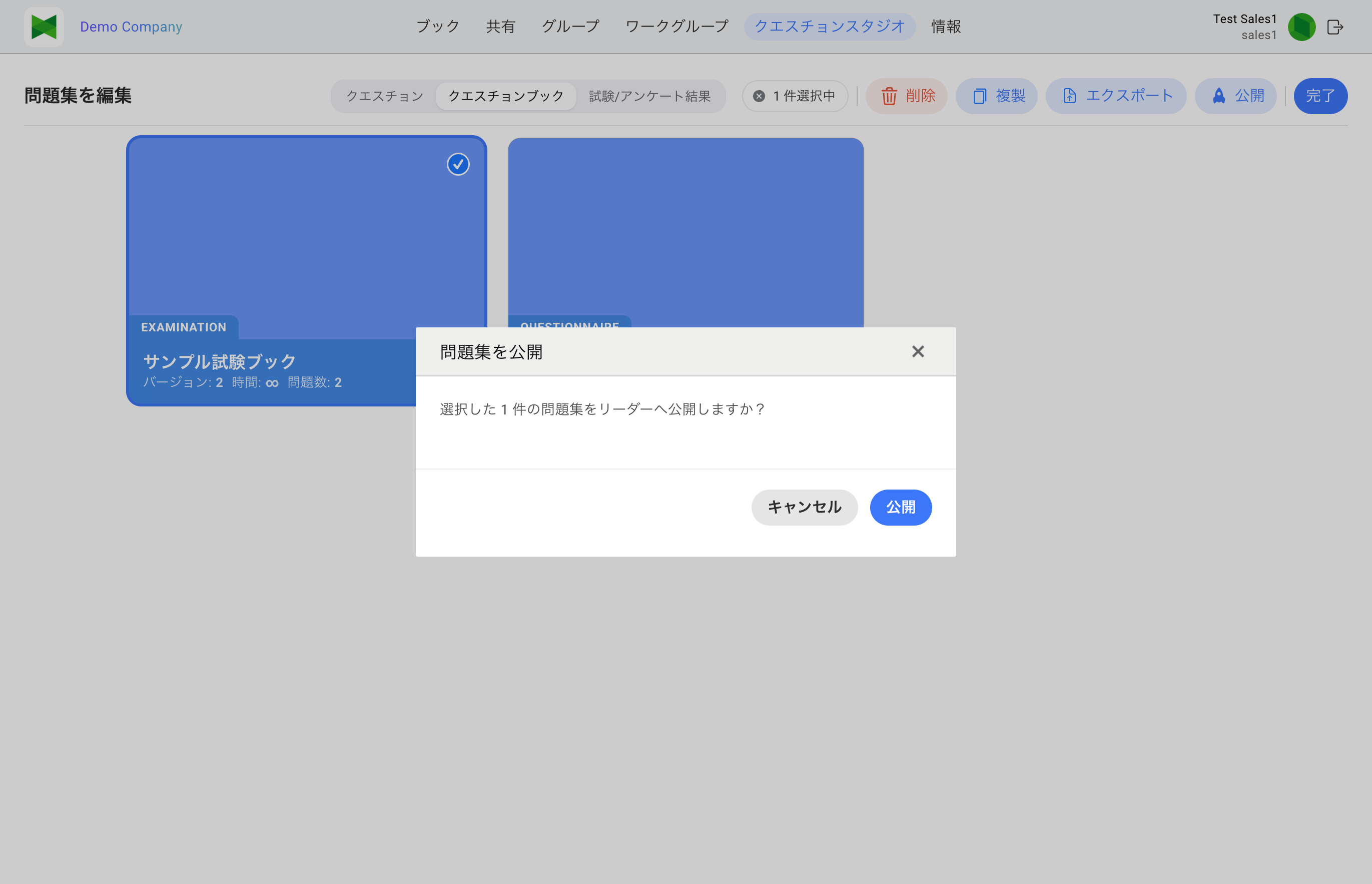
- A confirmation dialog "Publish N selected book(s) to readers?" appears first.
- On success the revision number is incremented and the new version becomes available in the reader apps.
- Publishing fails when preconditions are unmet (no questions, or storage quota exceeded):
Cannot publish: questions or cover are missing(shown when the book has no questions)Cannot publish: storage quota exceeded- Partial success is aggregated as "N published, K failed".
Note (about covers): When you create a question book in the Web UI, a default cover (DefaultCover1) is pre-selected, so a book can never end up without a cover. Although the error message mentions a missing cover, publishing a Web-created book normally never fails because of the cover.
Note: Access to a published book is controlled the same way as other books — via sharing (Access Code, Group, User). See 4. Sharing for details.
10.7 Results Tab
The tab where you review and download responses to already-published question books.
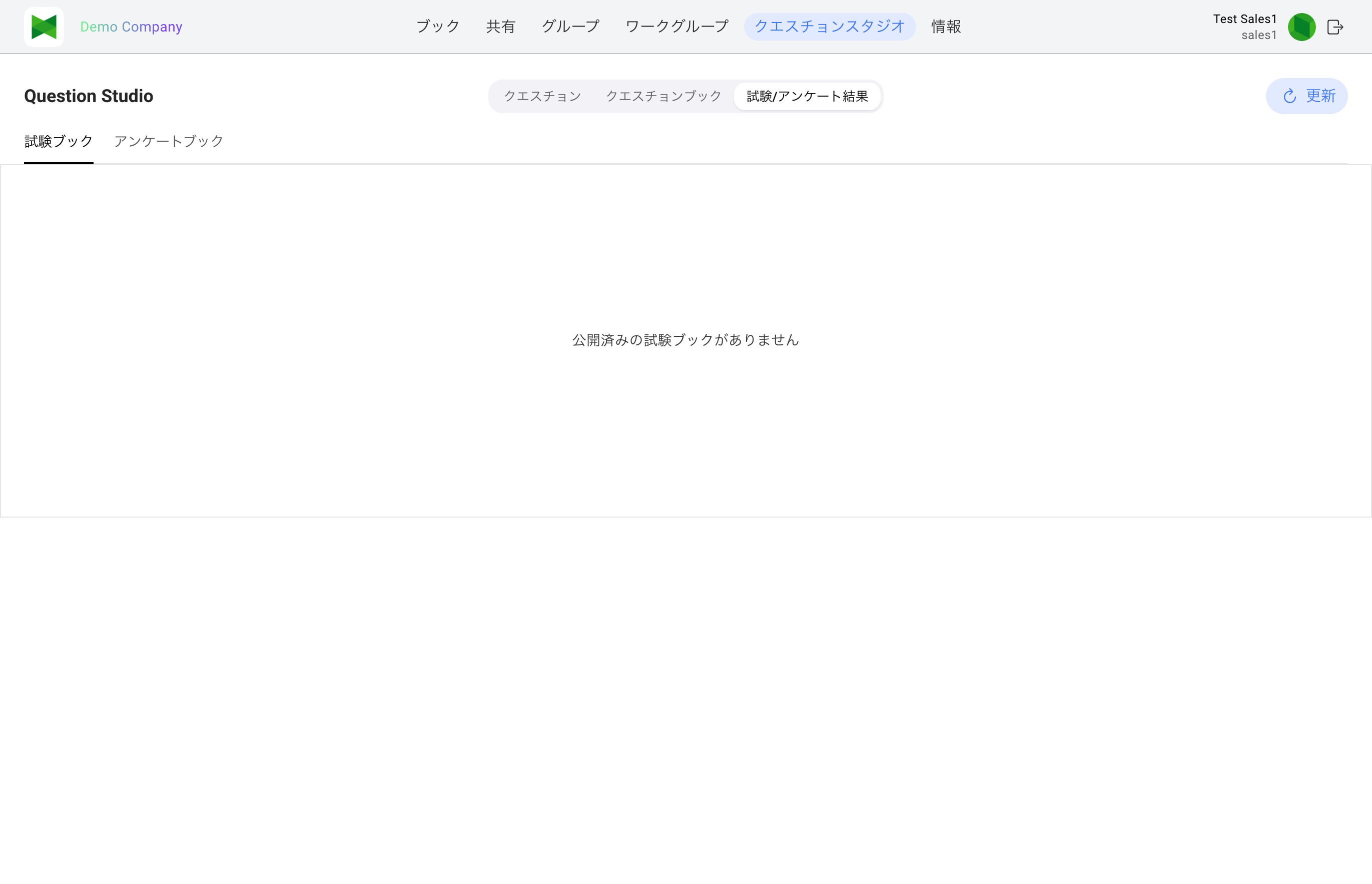
10.7.1 Sub-tabs
Two sub-tabs are shown on the sub-header:
| Sub-tab | Contents |
|---|---|
| Exam Books | Published exam books |
| Questionnaire Books | Published questionnaire books |
10.7.2 Result Table
Exam Books columns
| Column | Description |
|---|---|
| Title | Book title (with cover icon) |
| Revision | Current version |
| Total Examinees | Total submitters |
| Average Point | Average score across all submitters |
| (Download) |  icon at the row end opens the Download dialog icon at the row end opens the Download dialog |
Questionnaire Books columns
| Column | Description |
|---|---|
| Title | Book title |
| Revision | Current version |
| Number of Answers | Total respondents |
| (Download) | icon at the row end opens the Download dialog |
The Update button on the toolbar refreshes the aggregation. Submissions from readers are reflected immediately without notable delay.
10.7.3 Downloading Results
Clicking the download icon opens the Download Result dialog.
| Field | Description |
|---|---|
| From / To | Choose the date range to include. Errors out if From is after To |
| Download XLSX | Download in Excel (.xlsx) format |
| Download CSV | Download in CSV format |
Note (date range): Downloads are limited to the past year. Choosing an older From date shows a warning "Only data within the past year will be exported".
Note (no data): If there are no responses in the chosen range, a toast "No responses in the selected period" appears and no file is downloaded.
10.8 Sync with Client
On iOS / Mac, Question Studio stores questions locally on the device (with the user-personal backup uploading incremental changes to the server). The Sync with client (Backup Sync) feature reconciles those iOS/Mac backups with the questions authored in the Web UI, in both directions.
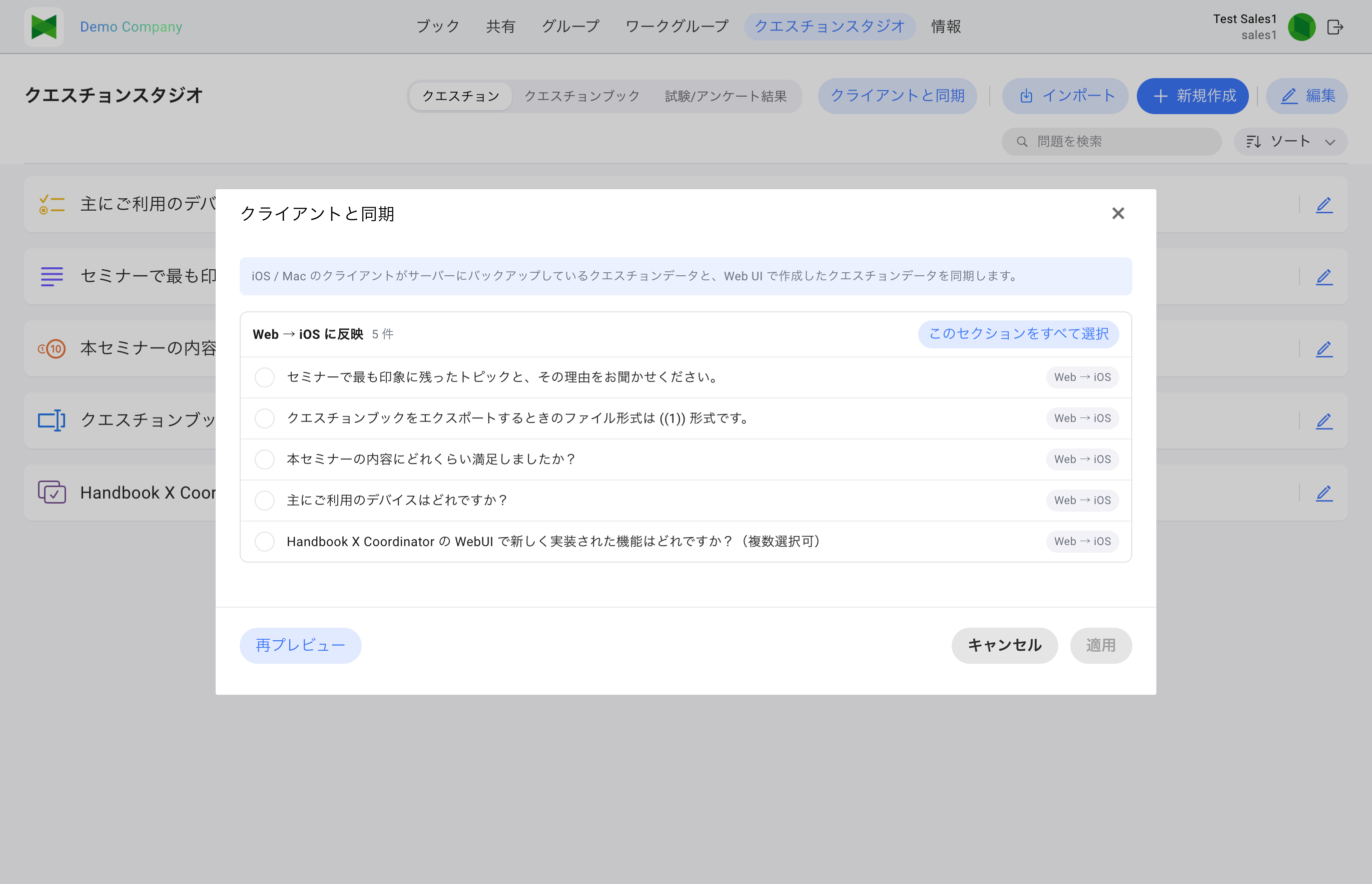
10.8.1 Launching
On the Questions tab, click Sync with client on the top right of the page header to open the preview dialog.
10.8.2 Preview Sections
The server computes the diff between the Web-side and iOS-side backup and groups items by section:
| Section | Description | Action |
|---|---|---|
| iOS → Web (pull) | Items that exist only on iOS. They will be pulled into the Web | Pull |
| Web → iOS (push) | Items that exist only on the Web. They will be pushed to iOS | Push |
| Conflicts | Items updated on both sides. Choose Prefer iOS / Prefer Web / Skip | Resolve |
| Deletion (needs confirmation) | Items deleted on one side | Pull Delete / Push Delete |
| Restore (needs confirmation) | Items previously deleted, now restored on one side | Pull Restore |
Note (visible sections): Each section is displayed only when it has at least one matching item. If there are no conflicts, deletions, or restores, those sections do not appear — often only "iOS → Web (pull)" and "Web → iOS (push)" are shown.
For each section:
- Each row has a checkbox for individual selection.
- "Select all in section" toggles the whole section.
- Conflict rows include a dropdown (Prefer iOS / Prefer Web / Skip) for resolution.
Note (uploads in progress): Questions with iOS uploads still in flight are automatically excluded, and a note "N items excluded because iOS uploads are in progress." is shown. Click Re-preview later to include them.
10.8.3 Applying
Once the selection is ready, click Apply.
- While running, a spinner "Syncing…" is displayed.
- On completion a summary "Success X / Skipped Y / Failed Z" is shown; a details section can be expanded.
- If data on either side changed between preview and apply, "Data changed after preview. Re-previewing." is shown; press Re-preview to retry.
10.8.4 Errors and Remedies
| Message | Typical cause | Remedy |
|---|---|---|
| Data changed after preview. Re-previewing. | Another update happened after preview | Re-preview and retry |
| Another device updated first. Please re-preview. | Server version tag mismatched | Re-preview and retry |
| Another sync is running. Try again after it finishes. | Backup Sync is running from another user/browser | Wait and retry |
| Cannot parse the iOS backup. | Broken or unsupported iOS backup zip | Skip the affected items and retry after the next iOS backup |
| Some attachments failed while saving. | Some attachment uploads to S3 failed | Re-preview to retry the remaining items |
| Some attachments used an unsupported format. | Server does not accept that MIME | Items containing such attachments are skipped (revise the file type on iOS) |
| You do not have permission to use this feature. | The org's plan does not include Question Studio | Upgrade the plan |
Note (iOS HEIC / HEIF / M4V): As of the July 2026 Web UI addition, iOS-specific image / movie formats (HEIC / HEIF / M4V) are on the server whitelist and can be ingested through Sync with Client.
10.9 Limitations & Troubleshooting
- Plans: As stated above, Question Studio is available only on Team / Business / Dedicated server (Enterprise). On other plans the menu entry is hidden.
- File size: Each attachment is capped at 100 MB. Import files are capped at 100 MB per file.
- Attachment formats: Movie support depends on the question type. Point questions accept images only.
- Skipped unsupported files: Dangerous files or files outside the server MIME whitelist are skipped automatically during import / export.
- Publish failure: Publishing fails when the book has no questions or the storage quota is exceeded. Verify the number of questions and available storage (a default cover is auto-selected at creation, so the cover is normally not an issue).
- Version conflict: When the same book is open in multiple browsers, the later save fails and prompts you to reload the latest version. Editing from a single place is safer.
- Preview results: Submissions from the preview in 10.5.3 are not aggregated in 10.7 Results Tab. Only submissions from reader apps via shared access are counted.
← Previous: 9. Profile / System Information | Next: Appendix A. Dedicated Server Administrator Guide →